

How to Build Indicators in ATAS: A C# Guide for ATAS and ATAS X
To build a custom indicator for ATAS, create a C# class library in Visual Studio, reference the ATAS assemblies from your installation, derive a class from Indicator and override OnCalculate. Build the project, then load the resulting DLL through the Add custom indicator button or by copying it into the ATAS Indicators folder.
What do you need before you start?
ATAS indicators are written in C#, and a working knowledge of object-oriented programming helps. You need Visual Studio (or another .NET IDE) and an installed ATAS platform, because your project references DLLs from the installation folder.
- A class library project, named without spaces, for example CustomIndicator.
- The target framework net10.0-windows. ATAS documents that the target framework must match the runtime of the platform, so check the platform's runtimeconfig.json if you are unsure. Older platform versions ran on .NET 8.
- LangVersion set to latest.
- References to ATAS.Indicators.dll (required) and, for most indicators, ATAS.DataFeedsCore.dll, OFT.Attributes.dll, OFT.Rendering.dll and Utils.Common.dll.
- Private set to false on every ATAS reference, so the platform keeps using its own copies instead of the ones in your output folder.
How do you create the indicator class?
Add using ATAS.Indicators and derive your class from Indicator. OnCalculate is abstract, so the project does not compile until you override it. The class-level DisplayName attribute sets the name shown in the indicator list, and a Category attribute groups it.
- Class: public class MyIndicator : Indicator
- Name in the list: [DisplayName("My Indicator")] from System.ComponentModel
- Grouping and help: [Category("...")] and [HelpLink("...")] on the class
- Required override: protected override void OnCalculate(int bar, decimal value)
How does OnCalculate work?
ATAS calls OnCalculate for every historical bar and then again when the current bar changes. Read the bar with GetCandle(bar) and write your result into a series with data[bar] = value. After RecalculateValues() the platform clears the series and calls OnCalculate again from bar 0.
- A new indicator starts with one ValueDataSeries at DataSeries[0]. Cast it before use: (ValueDataSeries)DataSeries[0].
- GetCandle(bar) throws an exception for an invalid index. The valid range ends at CurrentBar - 1.
- Calls can be skipped when ticks arrive faster than the calculation runs, so do not count on one call per tick.
- Keep logging inside OnCalculate to a minimum, because it runs very often.
- Reset your own state in OnRecalculate, since a recalculation starts again from bar 0.
Which data series types can an indicator use?
ATAS supports several series types. Extra series are added in the constructor with DataSeries.Add. Use the bar index from OnCalculate when you write, because an out-of-range index in a ValueDataSeries silently extends the series instead of throwing an error.
| Series type | Typical use |
|---|---|
| ValueDataSeries | One number per bar, drawn as a line, histogram or dots |
| RangeDataSeries | A value range per bar, for bands or channels |
| CandleDataSeries | Candles drawn by the indicator |
| PriceSelectionDataSeries | Highlighted price areas |
| PaintbarsDataSeries | Recoloring existing chart bars |
| ObjectDataSeries | Custom objects stored per bar |
Series types listed in the ATAS indicator documentation.
How do you add settings to an indicator?
Settings are public properties with the Display attribute from System.ComponentModel.DataAnnotations. Name sets the label, GroupName sets the section in the settings window, and Order sets the position. Description adds a tooltip text, and a Range attribute limits the allowed values. Properties without a setter, marked ReadOnly, show information such as a version.
- [Display(Name = "Session Timezone", GroupName = "Session Timing", Order = 10)]
- [Range(-12, 14)] limits an integer setting to a sensible span
- Call RecalculateValues() in the setter when the setting changes the result, so the chart updates
- Set IsHidden = true on series whose default settings you do not want to show
How do you draw custom graphics with OnRender?
Set EnableCustomDrawing to true in the constructor and call SubscribeToDrawingEvents with the layers you need. Without both, OnRender is never called. Then override OnRender(RenderContext context, DrawingLayouts layout) and draw through the context.
| Layer | When OnRender runs |
|---|---|
| Historical | On each new candle and when the chart moves |
| LatestBar | When the most recent bar changes, usually every tick |
| Final | On every chart render, for example on mouse movement |
Drawing layers, as described in the ATAS graphics documentation.
- Shapes and text: DrawLine, DrawRectangle, FillRectangle, DrawEllipse, DrawString and MeasureString on the RenderContext.
- Colors are System.Drawing.Color. Pens and fonts are RenderPen and RenderFont, and you should create them once in fields because OnRender runs often.
- Chart coordinates: ChartInfo.GetXByBar(bar, isStartOfBar) and ChartInfo.GetYByPrice(price, isStartOnPriceLevel). The origin is the upper-left corner of the chart.
- Visible range: FirstVisibleBarNumber and the price range of the chart tell you which bars and prices are on screen, so you only draw those.
What is different between ATAS Classic and ATAS X?
For a normal indicator that calculates and draws through the RenderContext, nothing differs. ATAS documents that a single net10.0-windows DLL is installed into both the classic ATAS and ATAS X. The differences start where you use Windows-specific user interface code.
| ATAS Classic | ATAS X | |
|---|---|---|
| Target framework | net10.0-windows | The same DLL works. A separate net10.0 build is only needed for custom windows or editors |
| Calculation and OnRender | Supported | Same code, no changes |
| WPF types | Allowed | Only Color, Point, Key, SolidBrush, Pen and Font are converted. Other WPF types cause the whole assembly to be rejected |
| Custom windows and property editors | WPF | Need a separate Avalonia-based build |
| Loading a changed DLL | Reload button in the status bar | Changed files are reloaded automatically |
ATAS Classic versus ATAS X for custom indicator authors.
How do you build and load the DLL?
Build the project and take the DLL from the output folder, for example bin\Debug\net10.0-windows. The easiest way to load it is the Add custom indicator button in the indicator settings, which needs no restart. Alternatively, copy it into the Indicators folder under AppData\Roaming\ATAS, or into the Extensions folder next to it.
- ATAS Classic: press the reload button in the main window's status bar after you replace a file while ATAS is running.
- ATAS X on macOS: the Indicators folder is ~/Library/Application Support/ATAS/Indicators, and the Extensions folder next to it also works.
- Your indicator then appears in the indicator catalog under the Custom Indicators category.
What are the most common mistakes?
- The indicator is missing in ATAS X: check the platform log for the entry Rejected assembly. It names the WPF types that blocked loading.
- OnRender never runs: EnableCustomDrawing is not set to true, or no drawing layer was subscribed.
- Wrong values after a settings change: the setter does not call RecalculateValues(), or state is not reset in OnRecalculate.
- Exception on a bar: GetCandle was called with an index beyond CurrentBar - 1.
- Series values land on the wrong bar: you wrote with an index other than the bar passed into OnCalculate.
- Slow chart: pens, fonts and brushes are created inside OnRender on every frame instead of once.
- Build fails: the project has no OnCalculate override, or the target framework does not match the platform runtime.
Where do you get help?
ATAS publishes developer documentation at docs.atas.net and example code in the AtasPlatform Indicators repository on GitHub, and runs a developers chat. ATAS technical support does not provide consultations or debugging for custom indicators, so plan for that before you start.
We build it for you
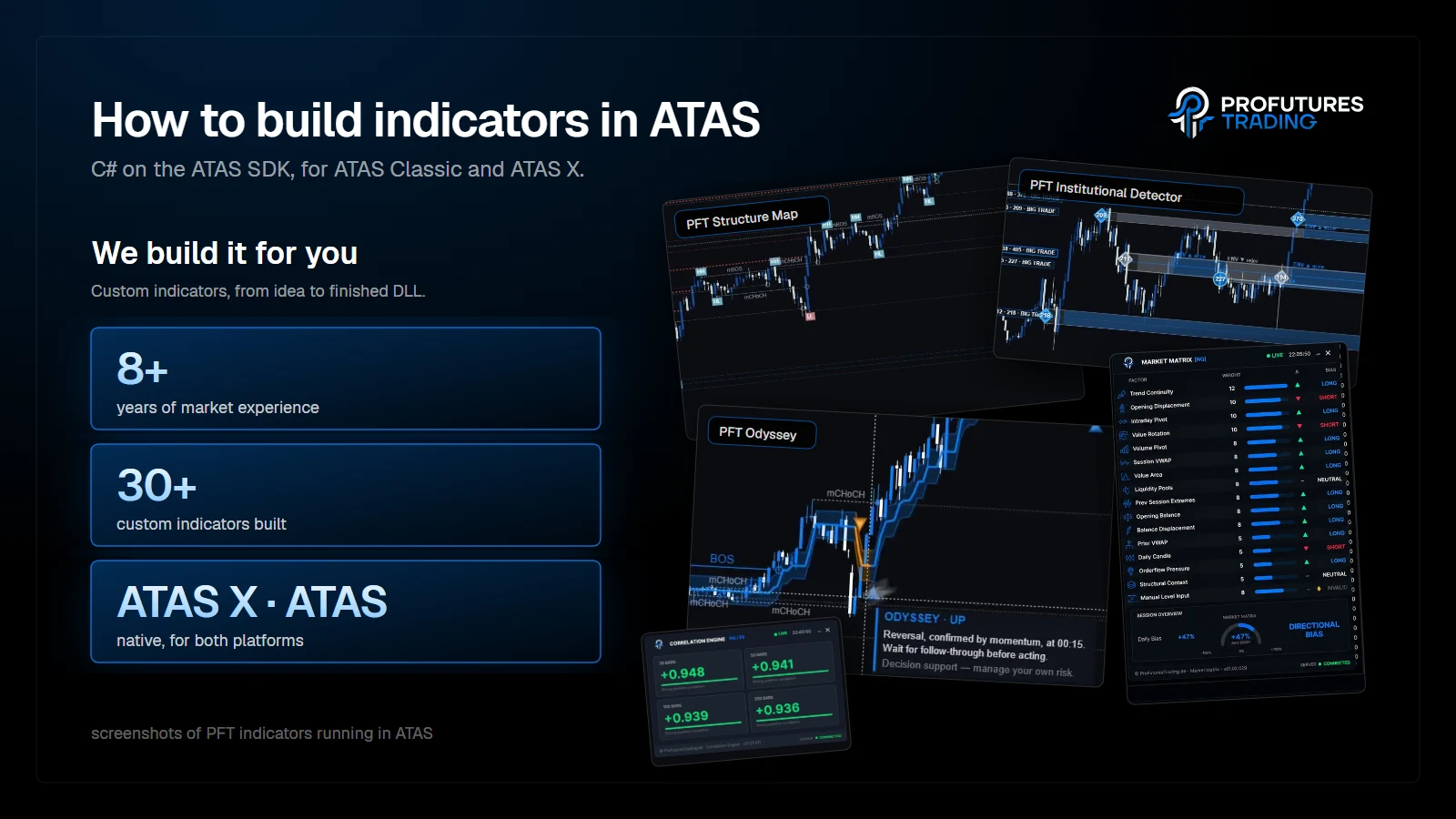
If you would rather trade than code, we build it for you. We bring 8+ years of market experience and have built 30+ custom indicators, native for ATAS X and ATAS Classic.
FAQ
What language are ATAS indicators written in?
C#. You create a .NET class library and derive your class from the Indicator base class in the ATAS.Indicators namespace.
Do I need separate code for ATAS X?
Not for indicators that calculate and draw through the RenderContext. ATAS documents that one net10.0-windows DLL is installed into both platforms. Custom windows and property editors need a separate Avalonia-based build for ATAS X.
Where does the compiled DLL go?
Use the Add custom indicator button, or copy the DLL into the Indicators folder under AppData\Roaming\ATAS or the Extensions folder next to it. On macOS the folder is ~/Library/Application Support/ATAS/Indicators.
Which method holds the calculation?
OnCalculate(int bar, decimal value). ATAS calls it for each historical bar and again when the current bar changes.
Can I draw on the chart from an indicator?
Yes. Set EnableCustomDrawing to true, subscribe to a drawing layer and override OnRender. Drawing goes through the RenderContext with methods such as DrawLine, FillRectangle and DrawString.
Will ATAS support help me debug my indicator?
No. ATAS states that technical support does not provide consultations or debugging for custom indicators. Use the documentation, the GitHub examples and the developers chat.
This article is educational content, not financial advice.