

Products
PFT TerminalJournal, live desk and AI mentor in one windowPFT Market SuiteBuilt on 8 years of market experiencePFT ForgeGamma levels and key strikes for ES and NQPFT Prop Scout17 futures prop firms, side by sidePFT CraftBuild custom indicators for your specific needsOur own prop firmComing soonAI and MCP accessYour journal, readable by an assistantLearn
Trading course8 years of mistakes and errors, aggregated for youResourcesArticles and trader linksFree calculatorsFutures, win rate, Monte Carlo, drawdown, consistencyDiscord community650+ futures tradersCompany
CareersApply to work with usPartner dealsDiscounts we passed onSupportGet an answer from a humanHow do I connect my trading journal to ChatGPT or Claude?
You connect a trading journal to ChatGPT or Claude through the Model Context Protocol (MCP). In ChatGPT you add the journal from the plugin directory or, depending on your plan, as a connector with its URL; in Claude you add the journal's connector URL as a custom connector. You then sign in with your journal account and approve the access, and the AI can read your trades, statistics and notes without you pasting data. PFT-EdgeBook's connector is read-only and can also run locally on your computer.
Disclosure: PFT-EdgeBook is our own product. TradesViz also offers a hosted MCP with separate read and write permissions.
What MCP is
MCP is an open standard that lets an AI assistant call tools in another application.[1] For a journal, that means the assistant can query your trades directly instead of working from a screenshot or a pasted CSV. Two things decide whether it is useful and safe: what the connector can read, and whether it can also change or delete data.
- Access type. Read-only, or can it also write and delete?
- Sign-in. Sign-in in the browser, or an API key you copy into the AI?
- Scope. Which data does the AI see (trades, notes, accounts, screenshots)?
- Clients. Claude, ChatGPT, others.
- Requirements and price. Plan, paid AI client, cloud sync.
How we evaluated the options: by the five points above, using only what the vendors publish on their own pages, read on November 2, 2026.
Comparison table
| Topic | PFT-EdgeBook AI Connector | TradesViz hosted MCP |
|---|---|---|
| Access | Read-only: "Nothing can be created, changed or deleted through the connector"; it exposes no write tools at all[2] | Read, add/edit and delete are separate permissions you grant per connection; write access can be left off[3] |
| Sign-in | OAuth; no API key is copied into the AI[2] | Browser sign-in; no REST key needed[3] |
| Data the AI can read | Trades, statistics, daily journal and voice notes, playbook, prop and broker accounts (balances not available, account numbers masked), trade detail with MFE/MAE and chart screenshots[2] | Trades, executions, notes and tags; day notes and general notes need a separate opt-in[3] |
| Ways to connect | ChatGPT plugin directory or connector URL, Claude custom connector, other MCP clients; also a local connection from the terminal[2][5] | ChatGPT, Claude, Grok, custom agents[3] |
| Requirements | An AI client that supports connectors, usually on a paid plan; the AI entitlement on your PFT-EdgeBook account; cloud sync on for the online connector[2] | Pro or Platinum subscription[4] |
| Price | Not stated on the connector page; sold as an add-on inside the terminal[2][5] | Pro €17.99 per month or €13.49 per month billed annually; Platinum €25.99 or €19.46 (shown to EU visitors, VAT treatment not stated)[4] |
| Orders | Cannot create anything[2] | "Cannot place, change or cancel broker orders"[3] |
Numbers in brackets refer to the source list at the end.
How to connect, step by step
Menu names change with app updates, so follow the current instructions of your AI provider. The steps below describe what you do, not where each button sits.
ChatGPT
- Turn on cloud sync in the PFT Terminal; the online connector reads your synced cloud journal.[2]
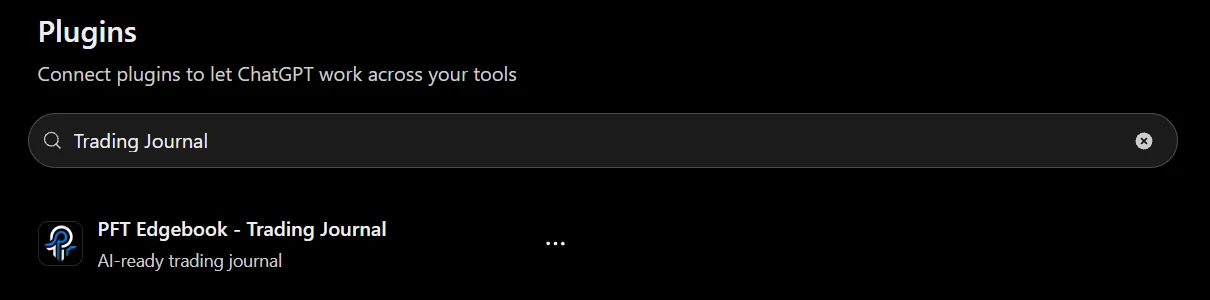
- In ChatGPT, search the plugin directory for "Trading Journal". PFT-EdgeBook is listed as "PFT Edgebook - Trading Journal".[5]
- Depending on your ChatGPT plan, you can instead add a connector yourself and paste the connector URL from the EdgeBook AI Connector page .
- Sign in with your PFT account and approve the read-only access.[2]
Claude
- Turn on cloud sync in the PFT Terminal.[2]
- In Claude's connector settings, add a custom connector and paste the connector URL from the EdgeBook AI Connector page . Free Claude plans are limited to one custom connector.
- Sign in with your PFT account, approve the access and confirm Claude's "external connector" notice once.[2]
Locally, on your own computer
The MCP add-on inside the PFT Terminal can also run the connector locally. It then reads the journal stored on your computer instead of the cloud copy, read-only, and is set up from the add-on (currently for Claude Desktop). The terminal has to be signed in for it to answer.[5]
For TradesViz, the vendor publishes its own MCP setup guide.[3]
The options in detail
PFT-EdgeBook AI Connector
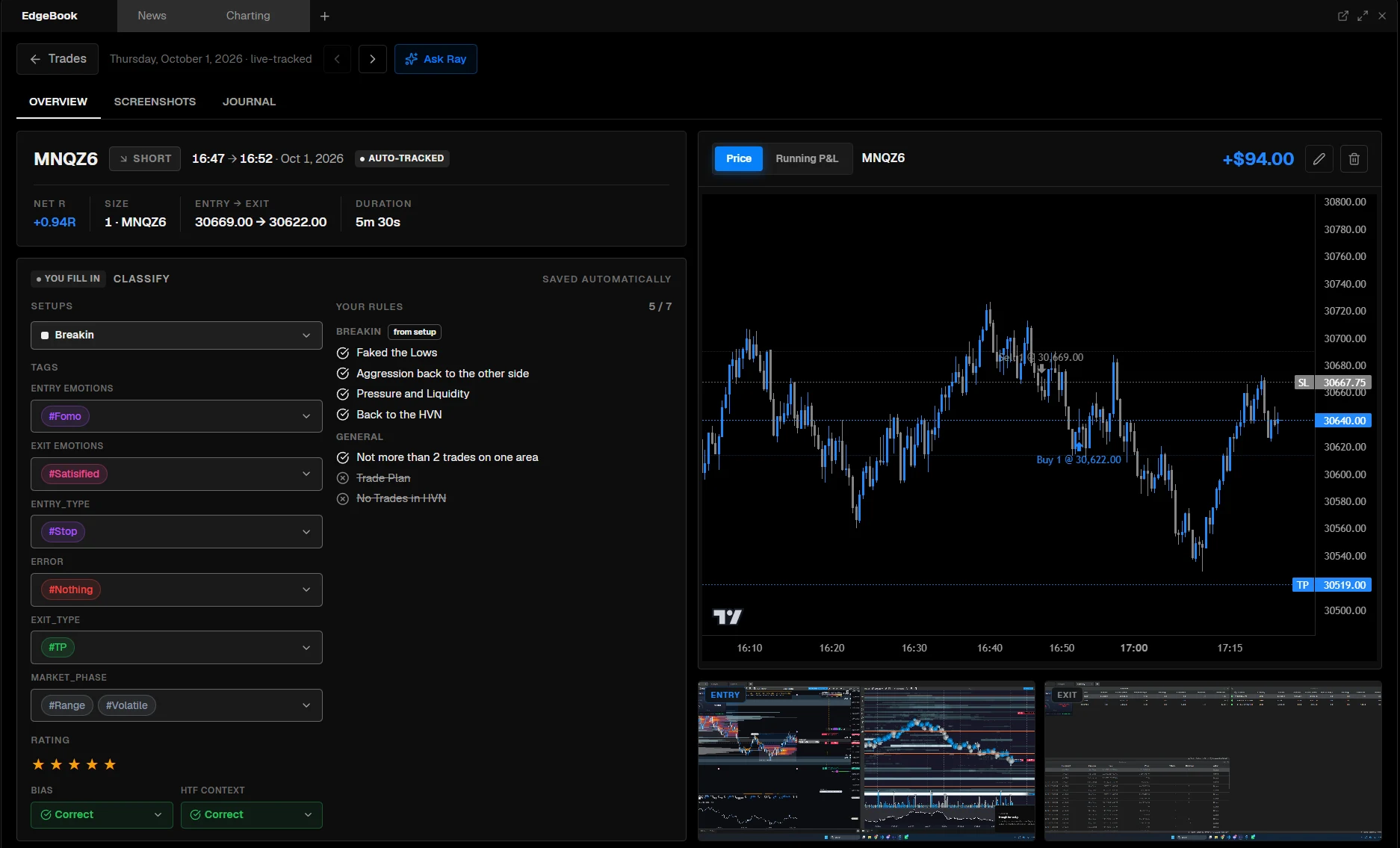
The connector URL is published on the PFT page. Per that page, requests are tied to your login, database row-level security limits you to your own rows, the connector never uses a shared admin key, internal IDs and tokens are not returned, and you can revoke access at any time. Data you request goes to the AI provider you chose (Anthropic or OpenAI) under that provider's terms. Journal data is stored in the EU (Supabase, Frankfurt).[2] For automatic trade import from ATAS, NinjaTrader and Sierra Chart, see PFT-EdgeBook.[6]
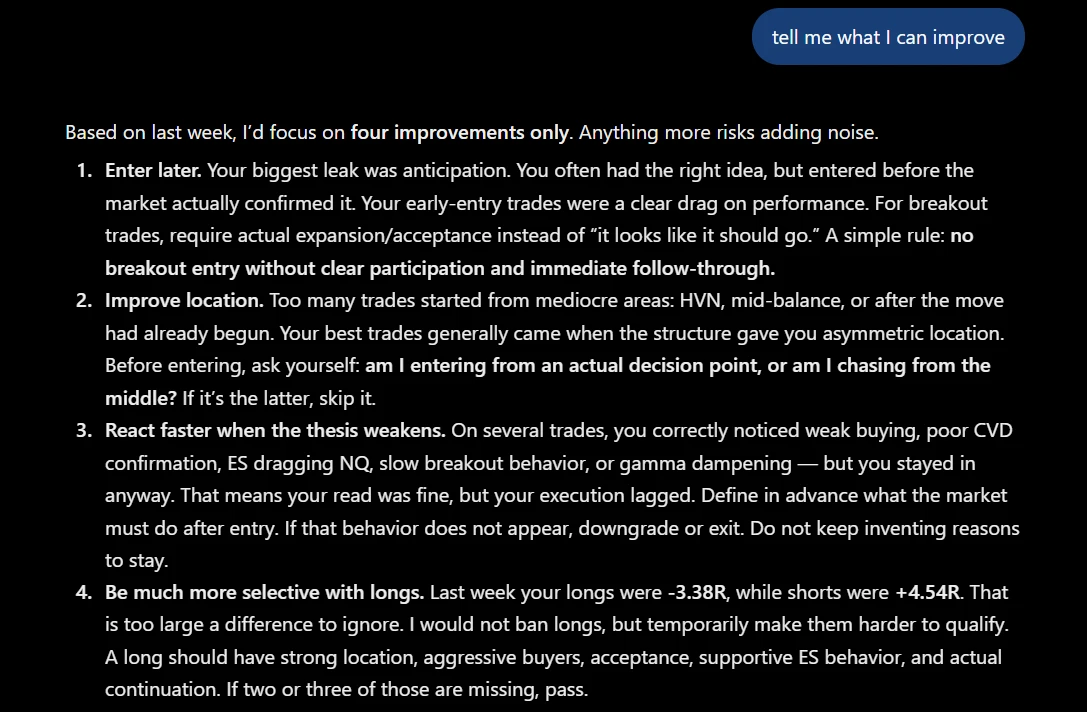
Best for: traders who want an AI to review their journal but do not want it to be able to change anything.
Less suited for: anyone who wants the AI to edit or correct journal entries (it cannot), or who needs a Mac app today (macOS is listed as coming soon).[6]
TradesViz hosted MCP
TradesViz runs the MCP server; you connect ChatGPT, Claude or Grok through a browser sign-in. Each assistant gets its own authorisation, and an existing read-only connection does not silently gain write access. Writes can include adding or editing notes and tags and journal management such as execution corrections or splitting trades, with a preview and confirmation for management operations.[3] It requires a Pro or Platinum plan; the Basic plan does not include REST API or hosted MCP.[4]
Best for: traders who want the AI to help maintain the journal (tags, notes, corrections) and are comfortable granting write permission.
Other journals
On November 2, 2026 we did not find an official MCP connector page for TradeZella, Tradervue, Edgewonk or TraderSync. That does not mean none exists; check each vendor.
Safety checklist for any journal connector
- Prefer read-only unless you need edits.
- Check how you can revoke access.
- Know where the data goes: the AI provider you chose processes what the connector returns.
- Do not treat AI output as advice: TradesViz itself states that the connection does not make a model's interpretation automatically correct.[3]
Why PFT-EdgeBook
PFT-EdgeBook is our own product, so read this section with that in mind.
- Read-only by design. PFT's connector exposes no write tools at all; with TradesViz, write access is a permission you can leave off.[2][3]
- No key to paste. OAuth sign-in; no API key is copied into the AI.[2]
- Local or online. Connect through the cloud from ChatGPT or Claude, or run it locally against the journal on your computer.[2][5]
- The data sits where the trades come from. Trades arrive through the bridge in ATAS, NinjaTrader or Sierra Chart, with MFE/MAE, stops and chart screenshots readable by the AI.[2][6]
- Fields for prop traders. Prop accounts show firm, phase, status, rule set and fee and payout history without amounts; balances are not available.[2]
If you want the AI to write to your journal, TradesViz's permission model fits better.
Your questions answered
Still stuck? Write to support@profuturestrading.de and a real person replies.
Over MCP. In ChatGPT, add the journal from the plugin directory or, depending on your plan, as a connector with its URL; in Claude, add the journal's connector URL as a custom connector. Then sign in with your journal account and approve access. PFT-EdgeBook's connector is read-only and can also run locally. PFT-EdgeBook is our own product.
MCP, the Model Context Protocol, is an open standard that lets an AI call tools in another app. In a trading journal it lets the AI query your trades, statistics and notes directly.
Check three things: whether access is read-only, how you revoke it, and where data goes. PFT's connector is read-only, uses OAuth, masks account numbers and sends requested data to the AI provider you chose. Safety still depends on your own settings.
Among those we checked, PFT-EdgeBook and TradesViz document an MCP connector; others exist. We did not find official MCP pages for TradeZella, Tradervue, Edgewonk or TraderSync on November 2, 2026.
According to PFT, connectors need an AI client that supports them, usually on a paid plan, plus the AI entitlement on your PFT-EdgeBook account and cloud sync enabled for the online connector.
No. PFT's connector cannot create anything, and TradesViz states its MCP cannot place, change or cancel broker orders.
Sources
All sources accessed on .
- 1.PFT blog, MCP trading journal (definition of MCP): profuturestrading.de/blog/mcp-trading-journal-claude-chatgpt/
- 2.PFT-EdgeBook AI Connector: profuturestrading.de/mcp/
- 3.TradesViz API and MCP: www.tradesviz.com/trading-journal-api-mcp/
- 4.TradesViz pricing: www.tradesviz.com/pricing/
- 5.PFT-EdgeBook AI Connector and the MCP add-on in the PFT Terminal: profuturestrading.de/mcp/ · profuturestrading.de/terminal/
- 6.PFT-EdgeBook: profuturestrading.de/terminal/
Connect your journal
The connector URL, requirements and security details are on the EdgeBook AI Connector page.