

MCP Trading Journal: Let Claude or ChatGPT Read Your Trades
An MCP trading journal lets an AI assistant you already use, such as Claude or ChatGPT, read your own trades and answer questions about them. PFT-EdgeBook offers this as a read-only connector: the AI can look at your trades, statistics, notes and playbook, but it cannot create, change or delete anything.
What is an MCP trading journal?
A journal that an AI can query directly, instead of you pasting numbers into a chat.
MCP stands for Model Context Protocol, an open standard that lets an AI assistant call tools in another application. For a trading journal, those tools are questions such as "list my trades from last week" or "show the statistics for this setup". The AI decides which tool to call, gets the answer from your journal and explains it to you in plain language.
The difference to copying a CSV into a chat is the source. A pasted file is a snapshot that you chose, trimmed and maybe mislabeled. A connector reads the journal itself, with the same trade, the same notes and the same tags you see in the app.
What can the AI read from PFT-EdgeBook?
Everything that describes your trading, and nothing it could change.
The PFT-EdgeBook connector exposes nine read-only tools. Each one answers one kind of question:
| Tool | What the AI gets |
|---|---|
| get_accounts | Your trading accounts with type (live, prop, demo), journalled P&L and trade count |
| get_stats | Win rate, net P&L, average win and loss, profit factor and average R, filtered by time range, instrument, direction, account or strategy |
| get_trades | Your trades with filters for time range, instrument, direction and account |
| get_trade_detail | One trade in depth: fills, MFE/MAE, stop and target, chart bars and, if you sync them, screenshots |
| get_journal | Your daily notes: pre-market plan, intraday journal and voice notes |
| get_playbook | Your strategies, setups and rules, with your own description of each |
| analyze_setup | All trades carrying one setup or tag, plus the statistics for that setup |
| search_notes | Full-text search across trade notes and daily journal entries |
| get_prop_accounts | Your prop firm accounts with firm, phase, status and rule set |
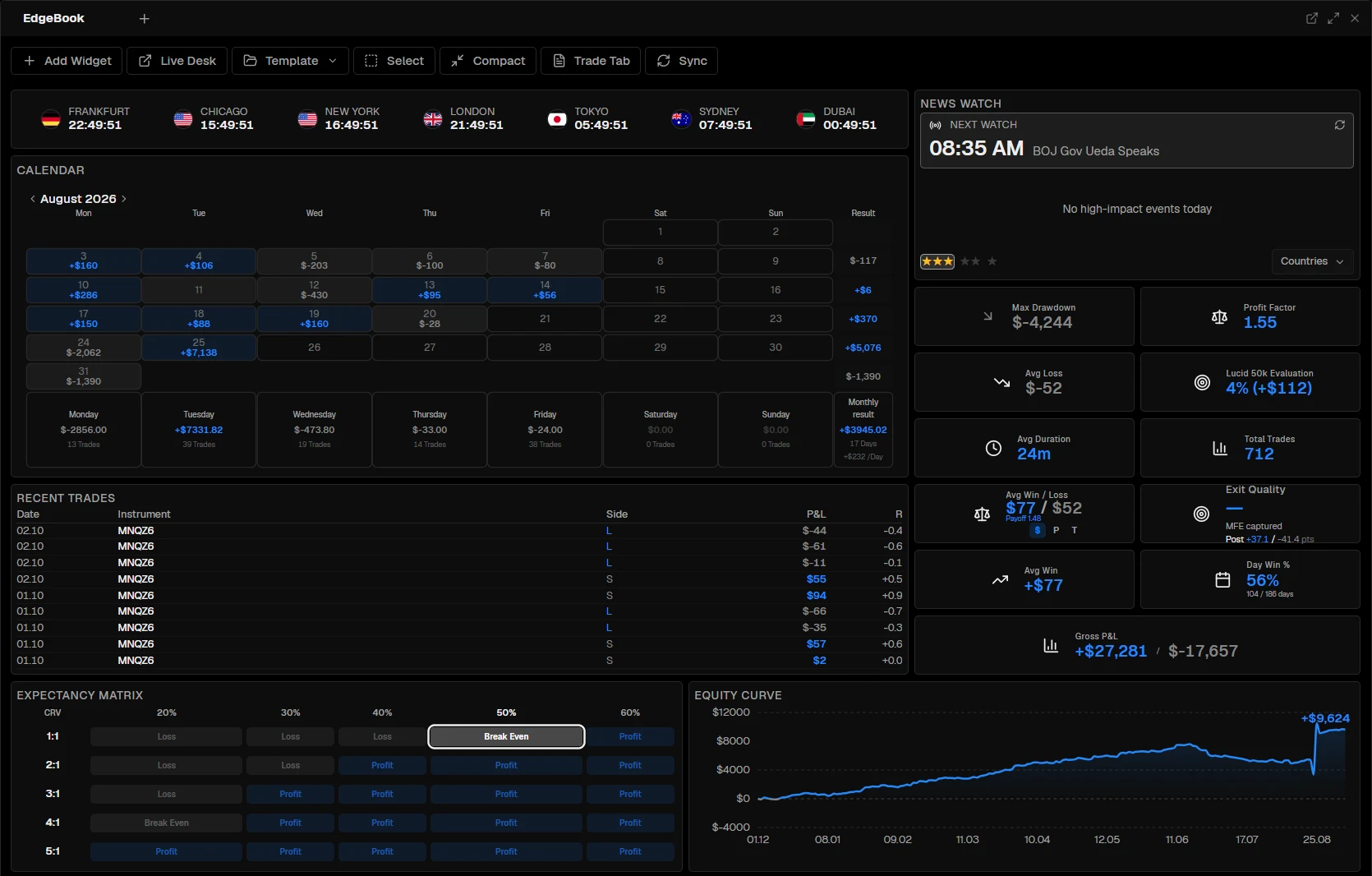
Some things are deliberately left out. Account balances are never synced to the cloud, so the AI cannot see them. Account numbers are masked before they leave your computer; only the last three characters are real. Screenshots stay on your computer by default and only reach the AI if you switch on image sync in the settings.
Why does live trade data matter for an AI?
Because the most useful questions need data that a trade export does not contain.
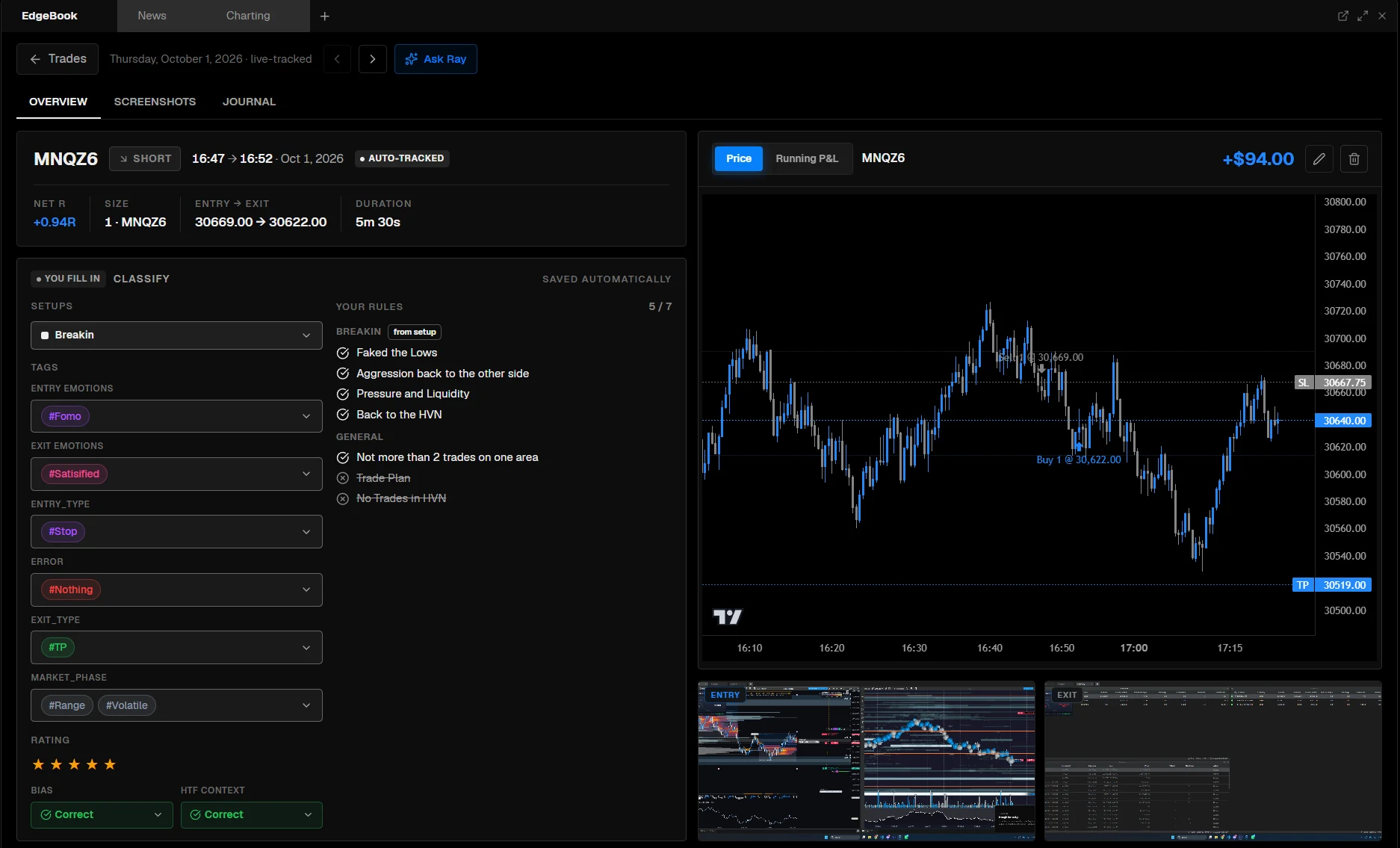
A broker export knows entry, exit, size and result. It does not know how far the trade went in your favor before you closed it, or what price did after you left. Those are the numbers that answer the hard questions: are my exits too early, are my stops too tight, is the setup wrong or is my execution wrong?
The PFT EdgeBook Bridge records them while the trade is open, from ATAS Classic, ATAS X and NinjaTrader:
| Field | What it means |
|---|---|
| MFE (in trade) | How far the trade ran in your favor while it was open, in points |
| MAE (in trade) | How far it ran against you while it was open, in points |
| Post-exit MFE / MAE | The same two numbers after your exit, within a window you set (30 minutes by default) |
| Trade high / low | The real price levels reached while the position was open |
| R-multiple | The result as a multiple of the risk you planned at entry |
| Chart bars and screenshots | The candles around the trade, and screenshots at entry and exit |
The connector does not just hand these numbers over. The tool descriptions tell the AI what each field means, including the direction logic. "max_up_move" on a short, for example, is the move in your favor, which means the market fell. Without that explanation, a model could easily read it the wrong way round and give you a confident but wrong review.
Trades from a file import, such as a CSV, have no live data. The AI receives an empty value for those fields and is told to say so, instead of guessing one.
Which questions can you ask your trading journal?
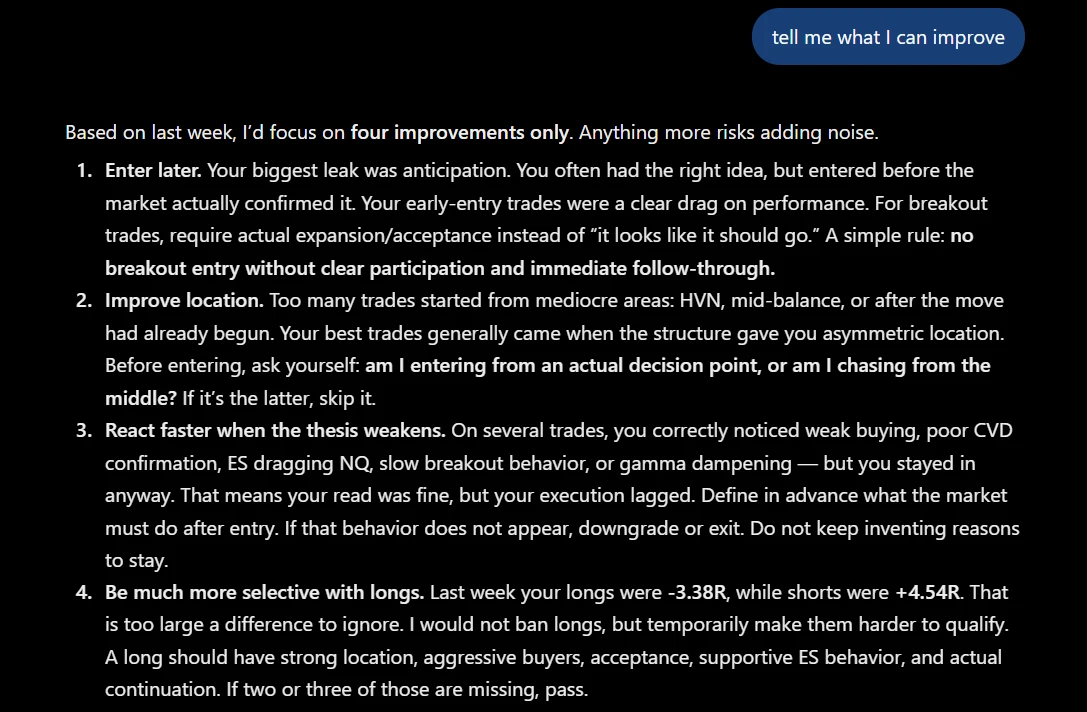
Questions you would otherwise answer with a spreadsheet and an evening.
| You ask | What the AI looks at |
|---|---|
| "Which of my setups has the best average R on my funded account this month?" | get_accounts, then get_stats per strategy, filtered to that account |
| "Am I exiting too early on my breakout trades?" | analyze_setup and post-exit MFE per trade |
| "Do my losses get bigger after the first loss of the day?" | get_trades for the period, ordered by time |
| "Did I follow my own rules for the opening drive setup?" | get_playbook for your rule text, then the trades tagged with that setup |
| "What did I write in my journal on days I broke my daily loss limit?" | get_journal and search_notes |
| "How close am I to the drawdown limit of my evaluation?" | get_prop_accounts, which returns the rules as percentages of the account size |
The playbook is what turns this from statistics into a review. Your strategies and rules carry your own description of what they mean. The AI reads that description and holds your actual trades against it, instead of guessing what "Opening Drive" is supposed to be from the name.
One habit makes the answers far more reliable: name the account. Without a filter, statistics combine every account you have, including demo, replay and backtest accounts. The connector tells the AI to check this first, but a precise question gets a precise answer.
How do you connect Claude or ChatGPT?
In ChatGPT, find the connector in the plugin directory; in Claude, paste the connector URL. Then sign in with your PFT account.
- Turn on cloud sync in the PFT Terminal. The connector reads your synced cloud journal, not the copy that only lives on your computer.
- In ChatGPT, open Plugins and search for "Trading Journal". The connector is listed as PFT Edgebook - Trading Journal.
- In Claude, open Settings, Connectors, and add a custom connector. Paste the connector URL from the EdgeBook AI Connector page.
- Sign in with your PFT account and approve the read-only access.
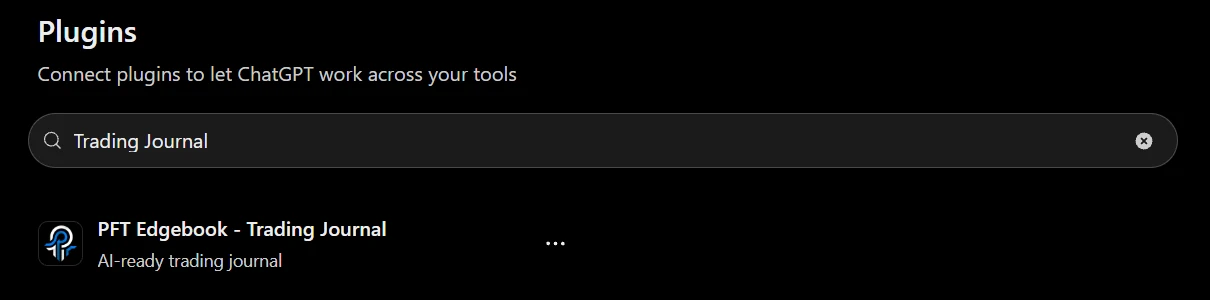
For a custom connector you need an AI client that supports custom connectors, usually on a paid plan, and in every case the AI entitlement on your PFT-EdgeBook account. The sign-in uses OAuth: no API key is copied into the AI, and you can revoke access at any time. In ChatGPT, the same URL also works as a custom connector in Developer Mode under Settings, Connectors, Advanced. Other clients that support MCP, such as Cursor or VS Code, work with the same URL.
Is it safe to give an AI access to your trading journal?
The connector is built so the AI can read, and only read, your own data.
- Read-only. Every tool only reads. Nothing can be created, changed or deleted, and there is no tool that places or manages orders.
- Your data only. Every request is bound to your login, and the database only returns your own rows.
- No balances, masked account numbers. Balances are never synced; account numbers are shortened to their last three characters before they leave your computer.
- You choose the AI. Data you request goes to the AI provider you connected, Anthropic or OpenAI, under that provider's terms. Journal data is stored in the EU. Details are in the privacy policy.
AI output can be wrong or incomplete. Treat the answer as a starting point for your own review, and check the trades it refers to before you change anything in your trading.
MCP connector or the built-in rAI coach?
Both read your journal; they differ in where the conversation happens.
rAI is the coach built into the PFT Terminal. It sits next to your trades, inside the app you journal in. The MCP connector is for traders who already work in Claude or ChatGPT and want their journal available there, next to everything else they use that assistant for. Many traders will use one or the other; neither is required to journal.
What makes this approach different?
The AI reads data that was captured during the trade, not reconstructed afterwards.
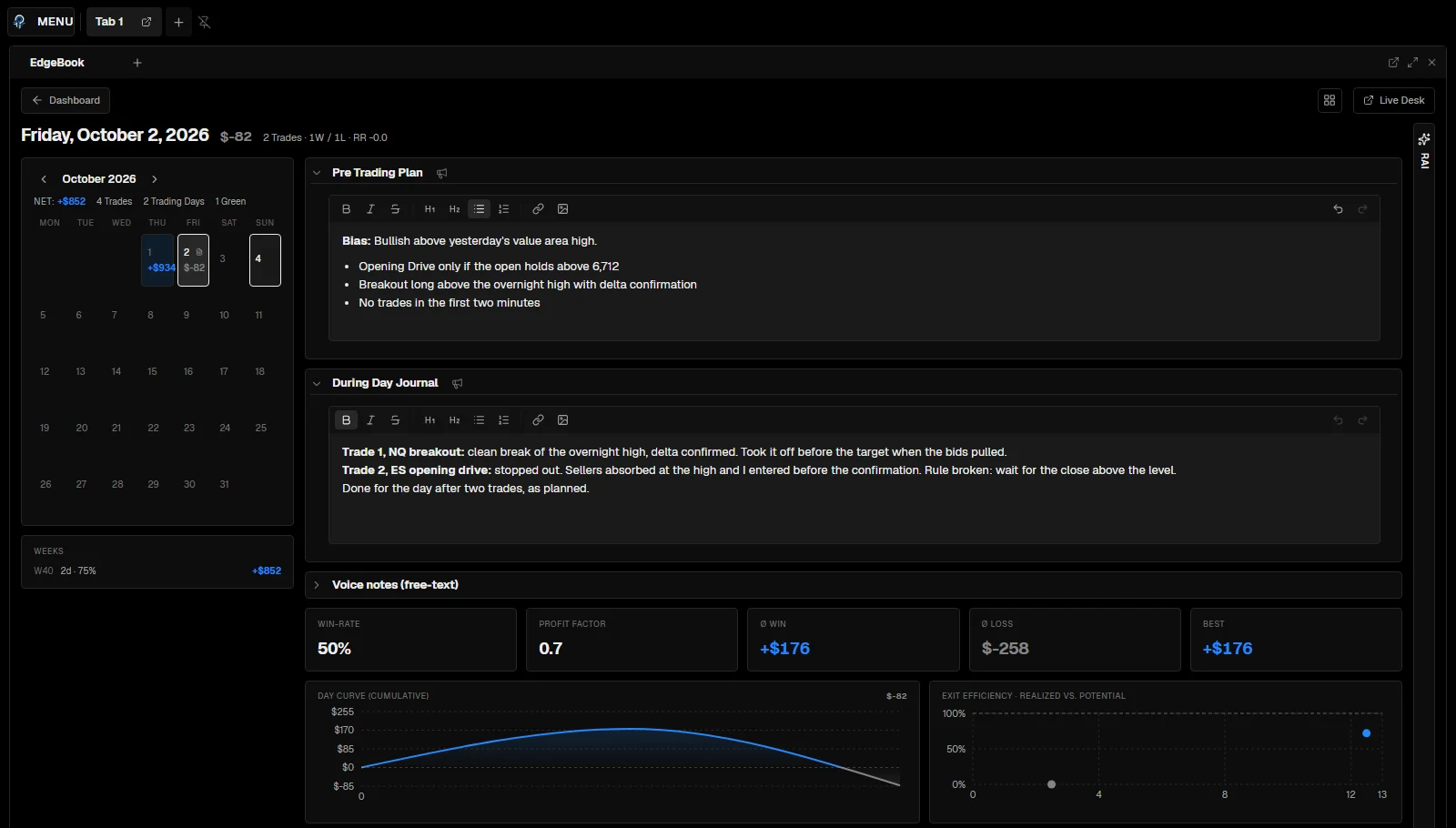
An AI review is only as good as the journal behind it. In PFT-EdgeBook, the bridge records the trade with its MFE, MAE and post-exit window, and you capture setup, rules and notes in the Live Desk while the position is open. The connector then gives the AI that material together with an explanation of what every field means. The result is a review based on what you actually saw and did, not on what you remember in the evening.
FAQ
What is an MCP trading journal?
A trading journal that an AI assistant can query through the Model Context Protocol. Instead of pasting numbers into a chat, the AI reads your trades, statistics and notes directly and answers questions about them.
Does PFT-EdgeBook work with ChatGPT and Claude?
Yes. In ChatGPT it is listed in the plugin directory, and both ChatGPT and Claude can connect through a custom connector with the URL on the EdgeBook AI Connector page. Other clients that support MCP work with the same URL.
Can the AI change my trades or place orders?
No. The connector is read-only. It cannot create, change or delete data, and it has no access to order execution.
What does it cost?
The PFT Terminal with the PFT-EdgeBook journal is free. The MCP connection is an add-on available in the Marketplace inside the terminal. Your AI client may also require a paid plan for custom connectors.
Which platforms deliver the live data?
The PFT EdgeBook Bridge records trades live from ATAS Classic, ATAS X and NinjaTrader. Trades imported from files, such as trade history exports or broker CSVs, are journalled too, but without the live fields such as MFE and MAE.
Will an AI journal make me profitable?
No tool can promise that. It helps you see what you actually do, so you become able to change the parts that cost you money.
This article is educational content, not financial advice.