

How to connect Claude to ATAS with AI Connect (MCP)
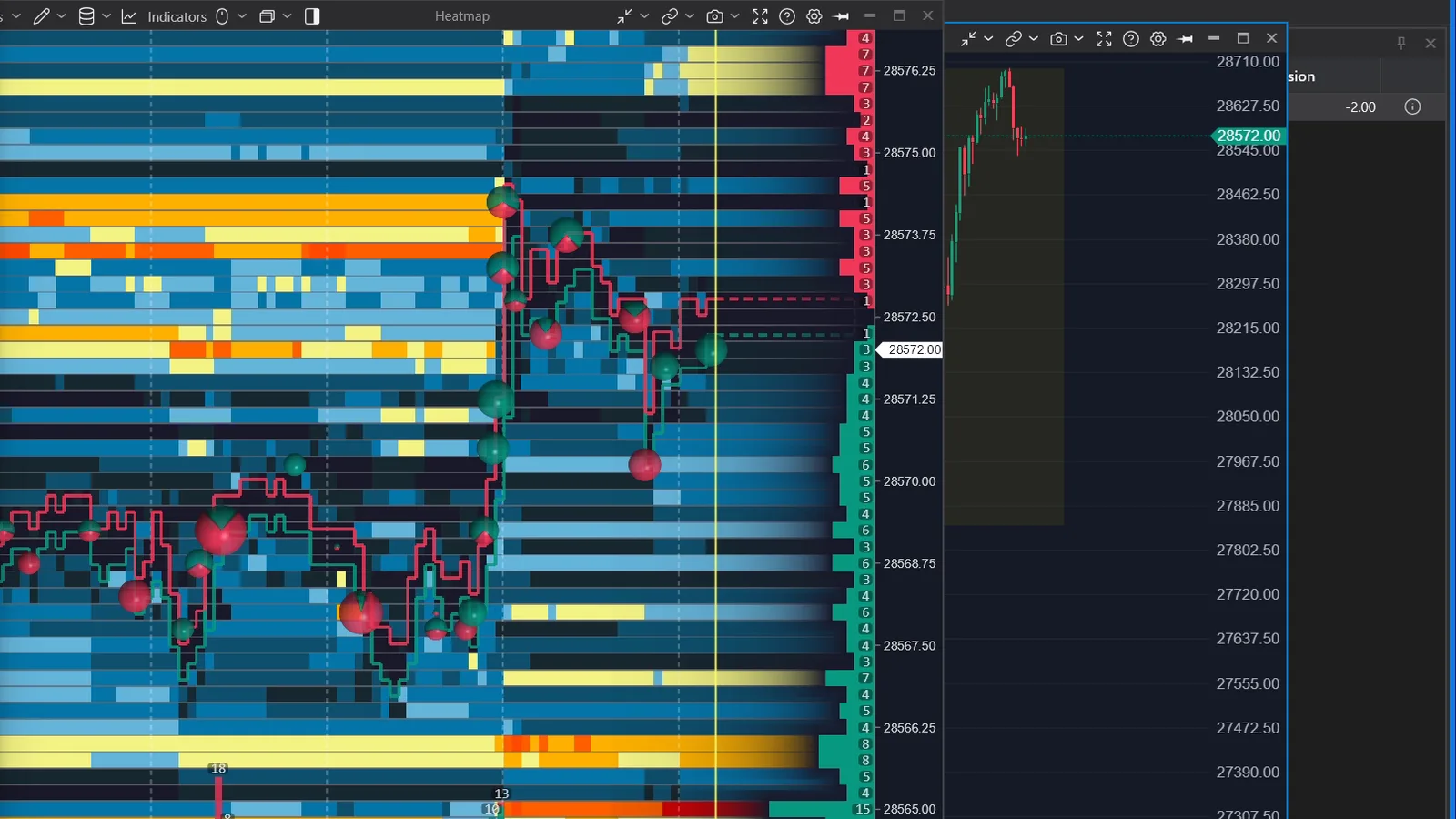
ATAS AI Connect is an MCP server built into the ATAS desktop platform. You switch it on in the menu "Connect AI agent", copy the prompt ATAS gives you, paste it into an AI agent that runs on your own computer, for example Claude Code or Claude Desktop, and the agent can then set up charts, add indicators, draw levels, write script indicators and read your trading journal. According to ATAS, reading prices, bars and the footprint works with crypto exchange data only [1][2]; in our test on a prop firm data connection the agent could not read futures prices.
We connected Claude Code to ATAS on the day of the release, live and without preparation. This guide shows the setup, what worked, and where the limits are.
What ATAS AI Connect is
AI Connect is a bridge between ATAS and an AI agent. ATAS publishes a list of functions through the Model Context Protocol (MCP); the agent picks the functions it needs and ATAS executes them [2]. The AI itself stays with the provider you choose, and you pay for that subscription yourself [1].
Three points matter before you start:
- The agent has to run on the same computer as ATAS. ATAS names Claude Desktop, Claude Code, Codex, Cursor and VS Code with GitHub Copilot. A chat in the browser does not work [1][3].
- You need the Ultra plan (the 14-day Ultra trial counts) and the desktop beta [1].
- The server only runs while ATAS is open and only accepts connections from your own computer with your personal token [2].
What you need
| Requirement | Detail |
|---|---|
| ATAS plan | Ultra, including Lifetime Ultra and the 14-day Ultra trial [1] |
| ATAS version | Desktop beta. ATAS lists ATAS X and Classic [1]; in our test the menu item was in ATAS Classic |
| AI agent | A desktop agent on the same computer: Claude Code, Claude Desktop, Codex, Cursor, VS Code with Copilot [3] |
| For tests on history | An agent that can run code, for example Claude Code [3] |
How to connect Claude to ATAS, step by step
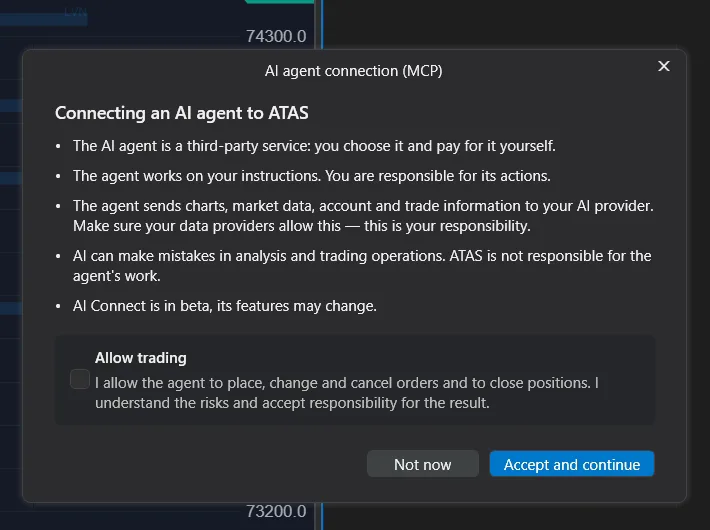
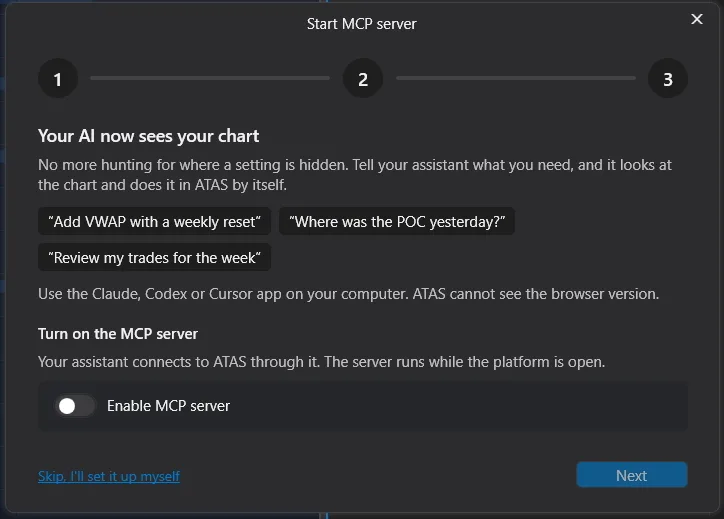
- Open "Connect AI agent" in the ATAS menu. The first time, a three-step setup starts [4].
- Accept the notice. ATAS states that the agent is a third-party service and that you are responsible for its actions.
- Switch on "Enable MCP server" and click Next [4].
- Click "Copy prompt". The prompt contains the ATAS address and your personal token. ATAS warns that the token works like a password: do not share it and do not show it in screenshots [4].
- Paste the prompt into your agent. In Claude Code the agent adds the server by itself. In our test we had to restart Claude Code once before the ATAS tools appeared.
- Check the Overview tab. It shows the server status and the number of connected clients [4].
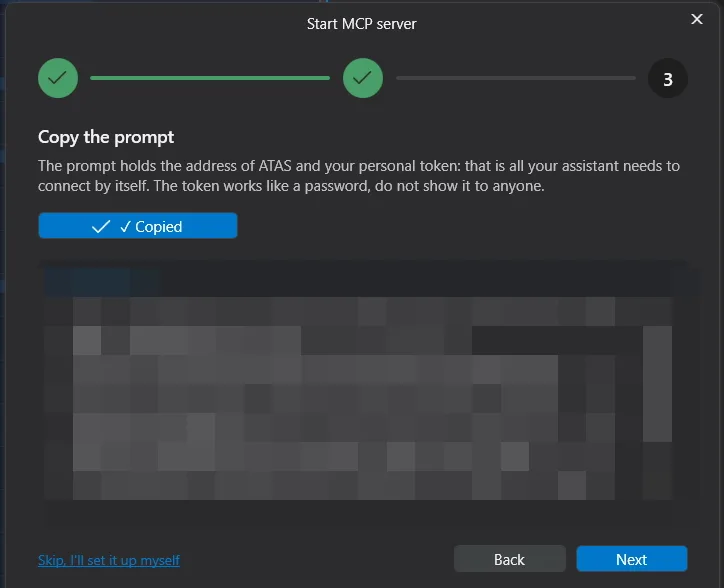
If the token was visible to someone else, use "Regenerate token" in the Overview tab. All agents are disconnected and you connect again with the new prompt [5].
The Access tab: decide what the agent may do
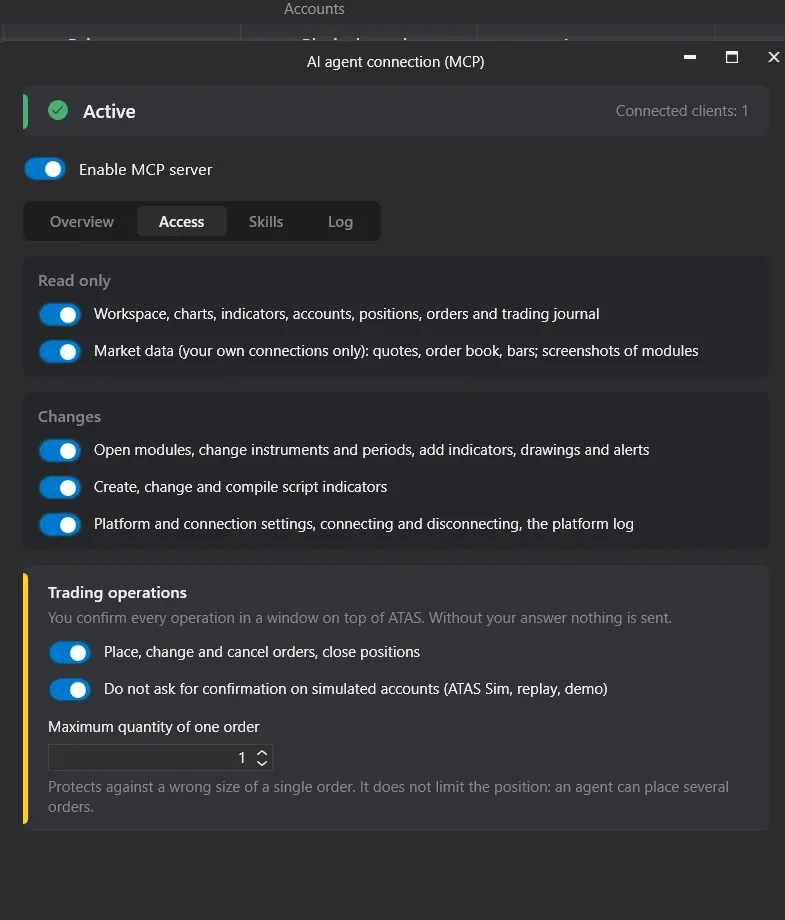
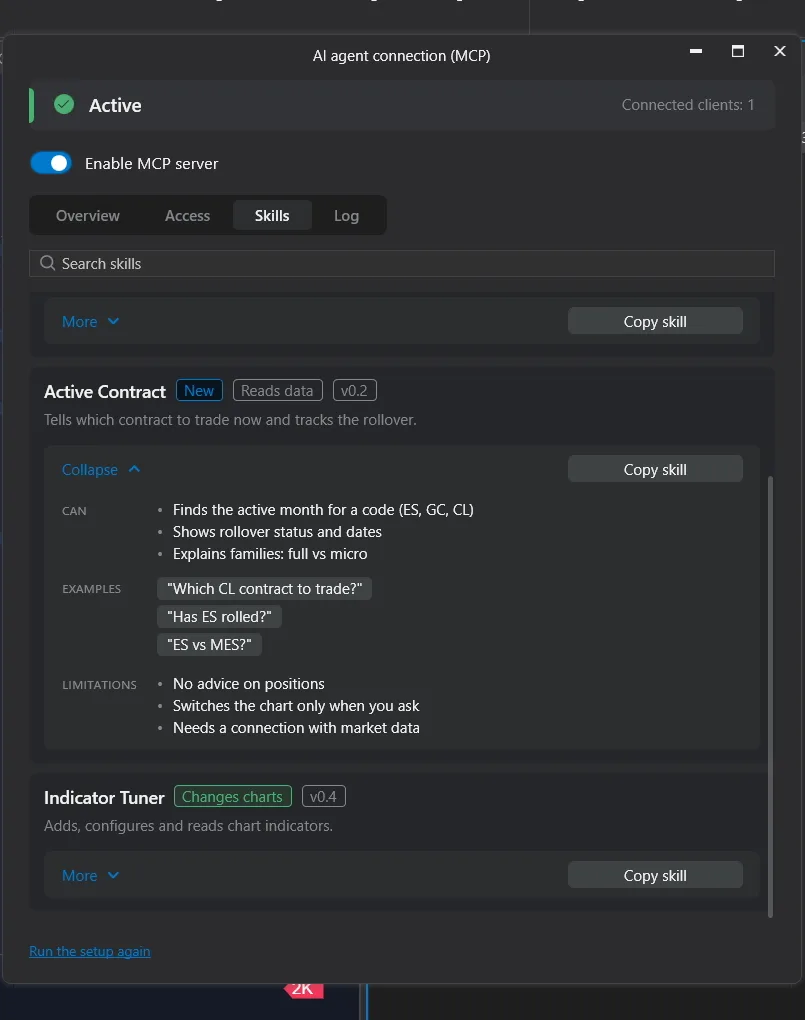
The window "AI agent connection (MCP)" has four tabs: Overview, Access, Skills and Log. Access is the one to read first [6].
| Group | What it allows | Default |
|---|---|---|
| Read | Workspace, charts, indicators, accounts, positions, orders, trading journal | On |
| Read | Market data from your own connections: quotes, order book, bars, screenshots of modules | On |
| Changes | Open modules, change instruments and periods, add indicators, drawings and alerts | On |
| Changes | Create, change and compile script indicators | On |
| Changes | Platform and connection settings, connecting and disconnecting | On |
| Trading | Place, change and cancel orders, close positions | Off |
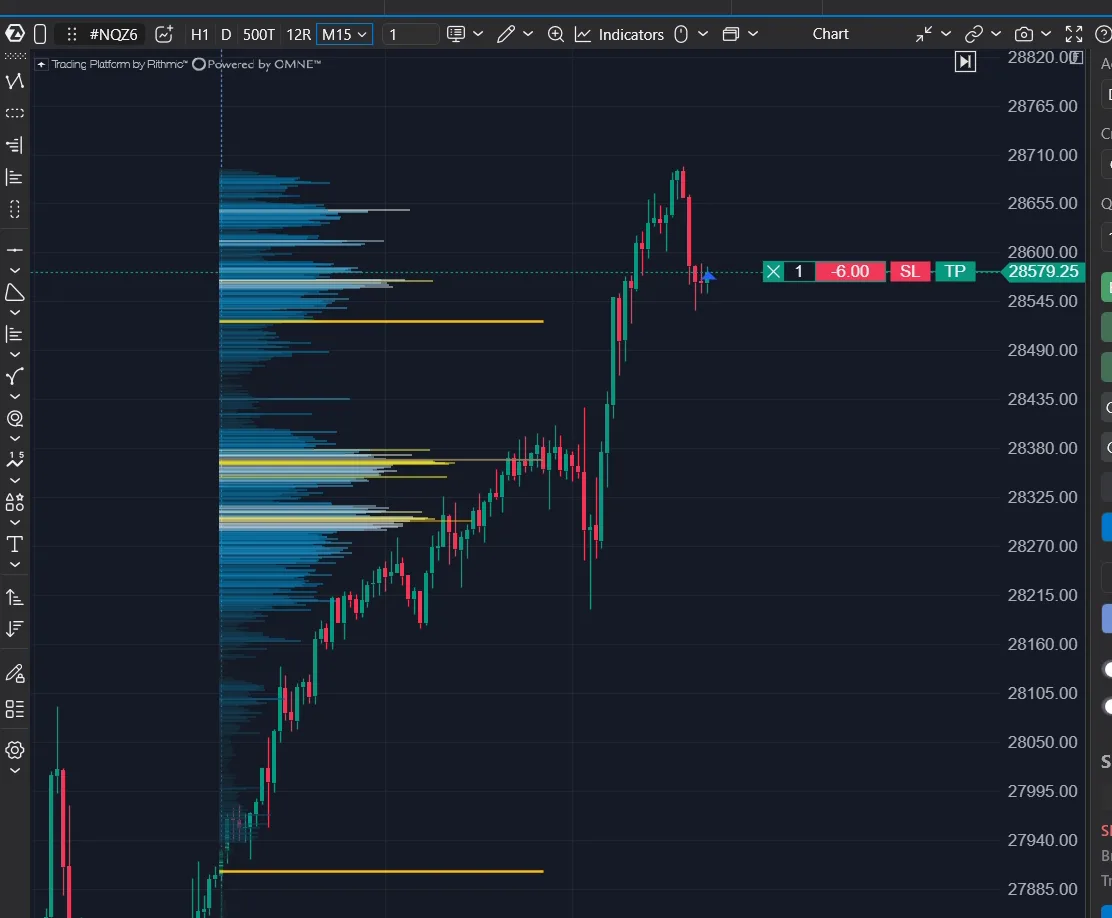
Trading operations stay off unless you switch them on. If you do, every order needs your confirmation in a window, and one agent order is limited to a quantity of one by default [6]. In our test we switched it on for a simulated account only, and Claude placed and closed one NQ order there.
What works on futures and what is crypto only
This is the most important limit for futures traders. ATAS states it in its own table [6]:
| Function | Crypto exchanges | Futures, stocks, options |
|---|---|---|
| Change charts, open instruments | Yes | Yes |
| Add and configure indicators | Yes | Yes |
| Draw levels, set price alerts | Yes | Yes |
| Write script indicators | Yes | Yes |
| Read journal, accounts, positions, orders | Yes | Yes |
| Read quotes, order book, bars, footprint | Yes | No |
| Read indicator values | Yes | No |
| Chart screenshots | Yes | No |
We saw exactly that. On NQ, Claude opened the chart, added a session volume profile with value area high and low, and switched the profile to heatmap mode. When we asked it to place a stop and target "based on its analysis", it answered that it cannot see NQ prices and would be guessing. On BTCUSDT it could read the chart. ATAS gives no reason for the limit and says further markets are planned for later [7].
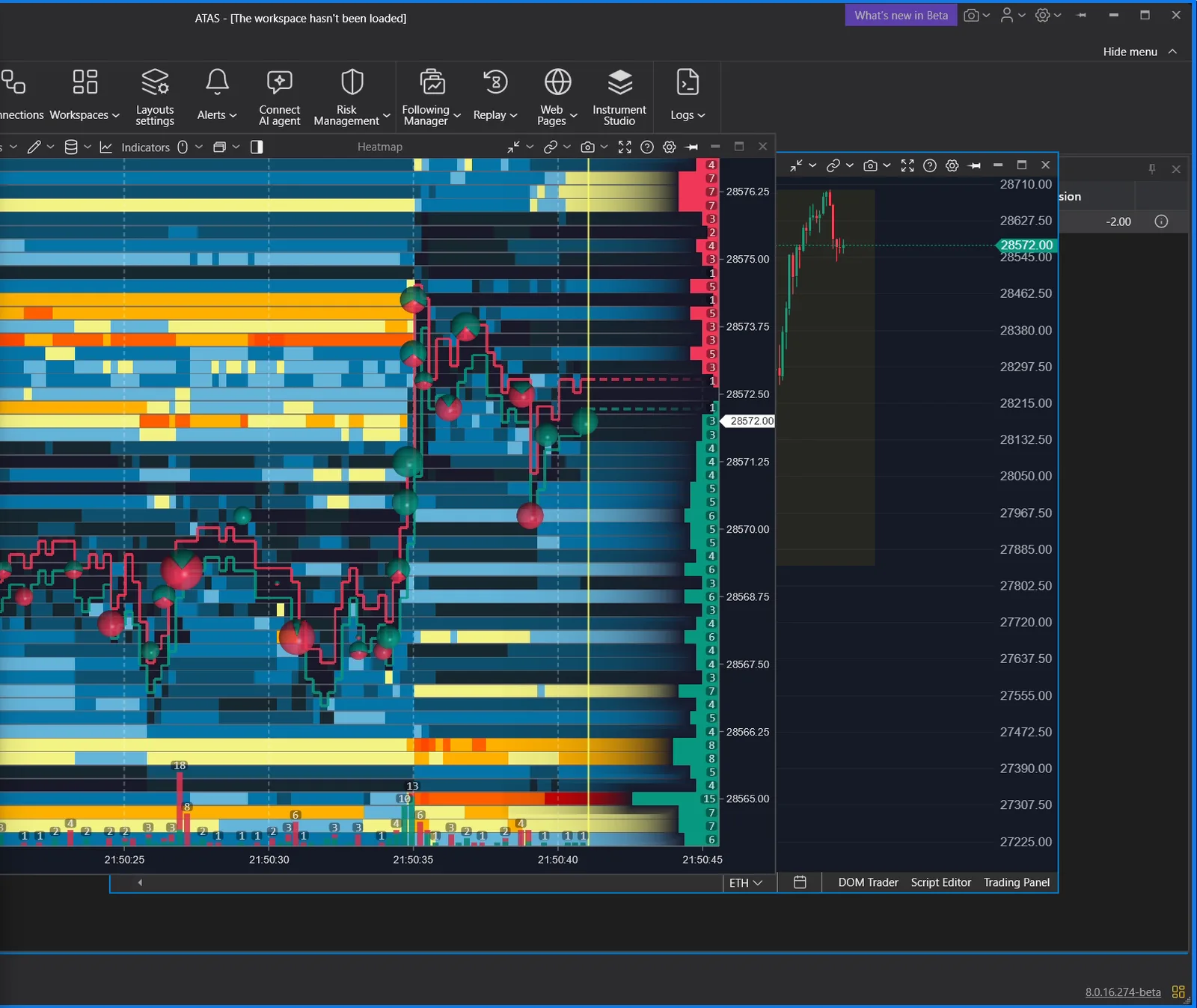
One addition: our session ran on a prop firm data connection. A viewer of the video told us that with a data connection through a broker such as AMP, the agent can read futures data as well. We have not verified this ourselves, and ATAS documents market data for crypto exchanges only [6], so check it on your own connection before you rely on it.
So for ATAS order flow trading on ES or NQ through a prop firm connection, AI Connect is today a tool for setup and building, not for market analysis.
What we built in the first session
- A chart from one sentence. "Open a 15 minute chart with a session volume profile and highlight the value area high and low for each session." Claude built it without us touching ATAS.
- An indicator in seconds. We asked for an indicator that shows strength and weakness on Bitcoin. Claude wrote it as a script indicator, compiled it and added it to the chart.
- An ATAS footprint chart from a reference picture. We gave Claude a picture of a footprint layout and asked for the same look on NQ: two cells per price row, shading by volume, a frame around the POC. Then we asked for four ticks per row and bubbles where the delta exceeds a threshold. It took a few minutes and two corrections.
- The script library. Every indicator the agent builds is saved in the ATAS script library with its source code, so you can read and change it.
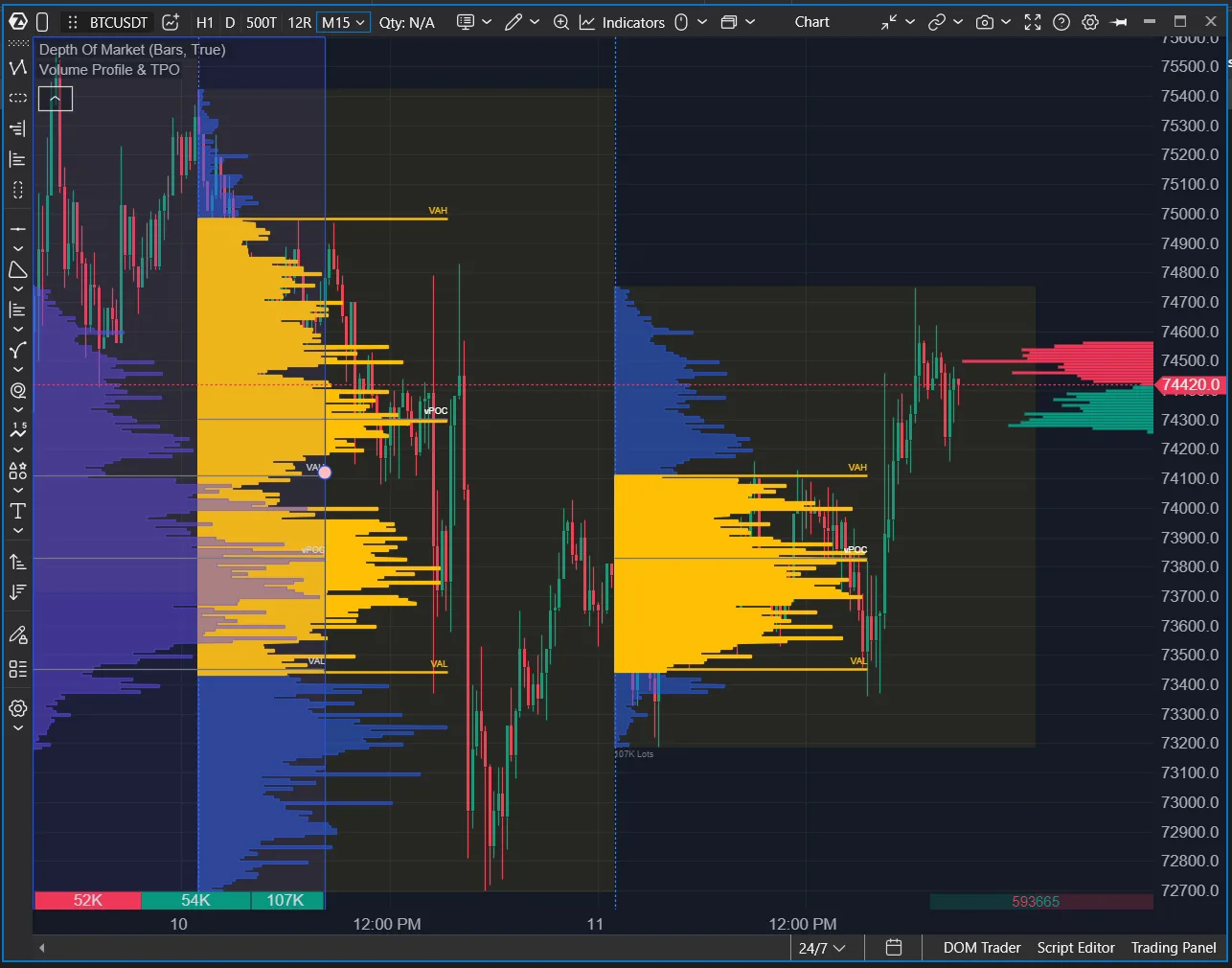
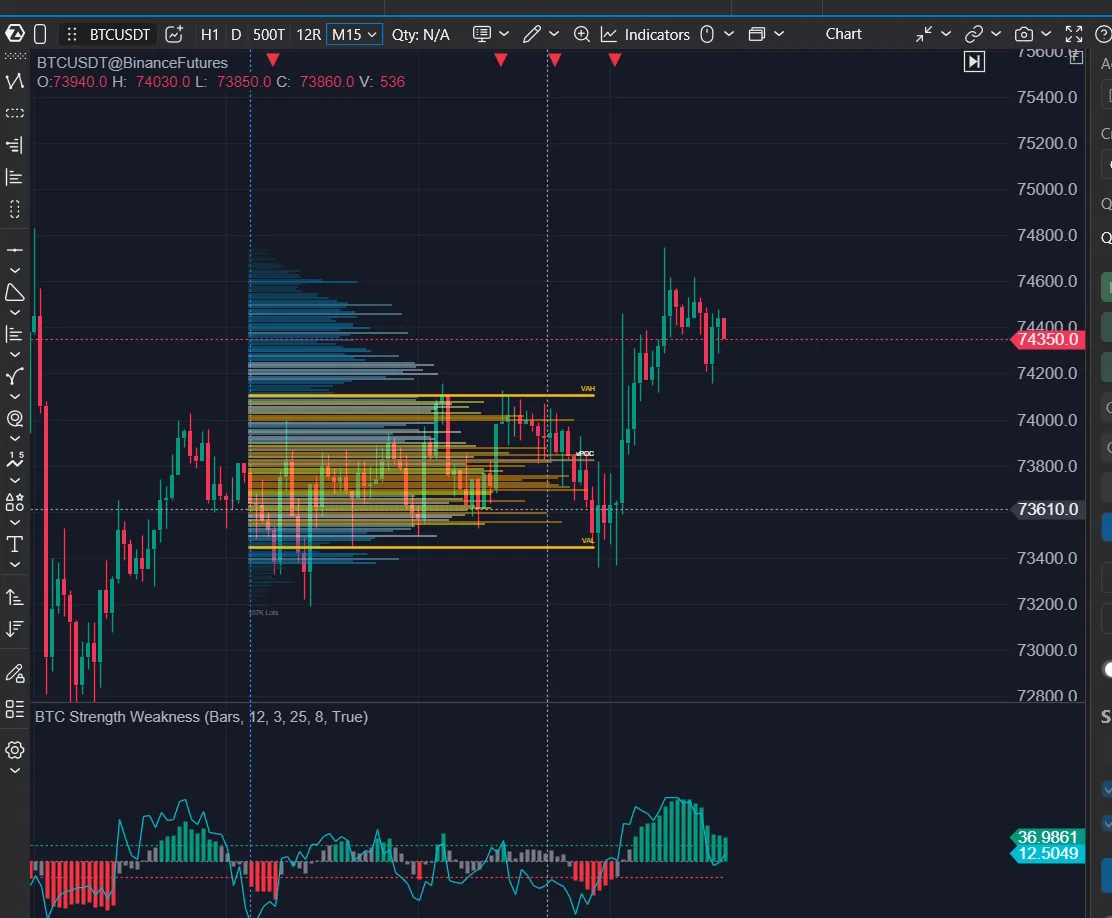
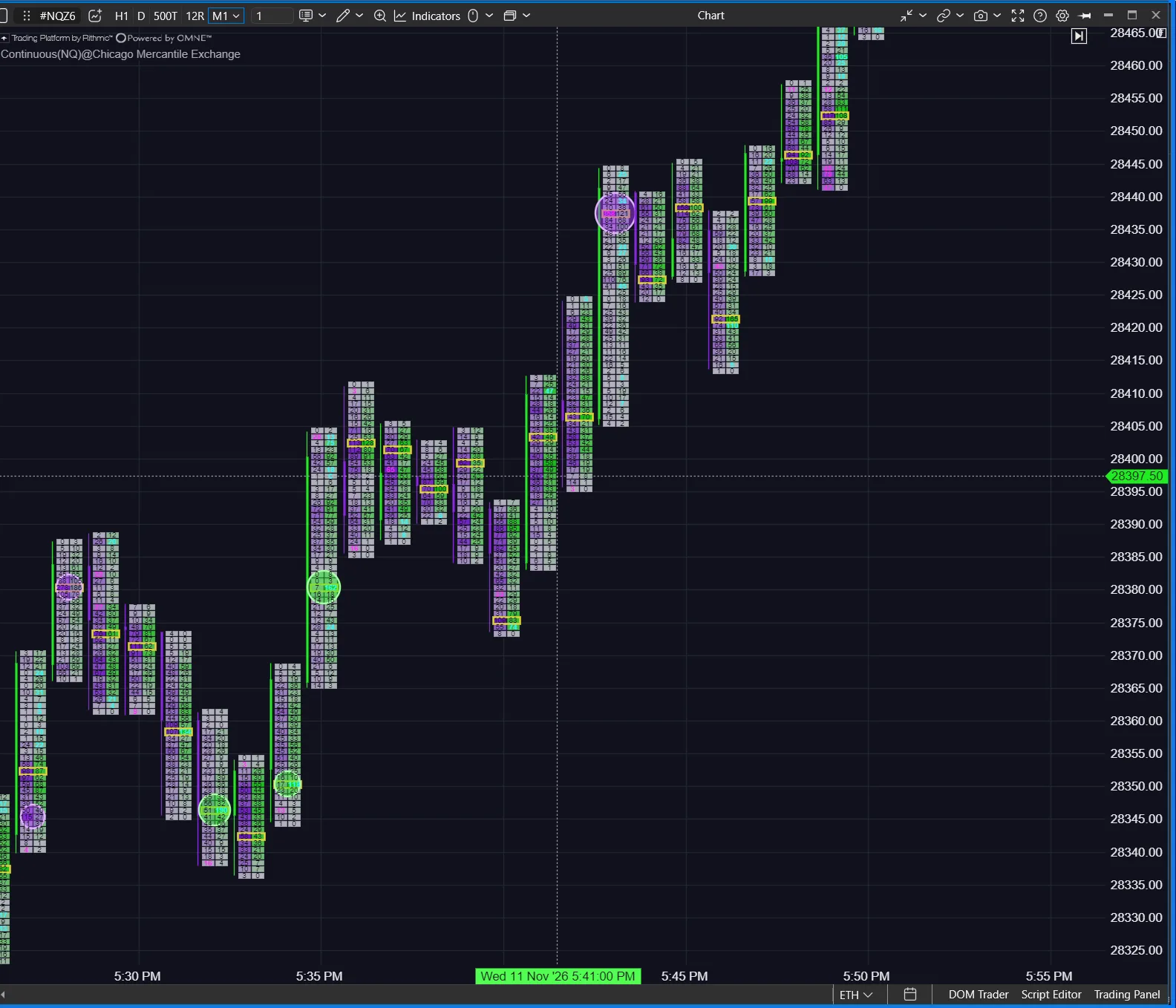
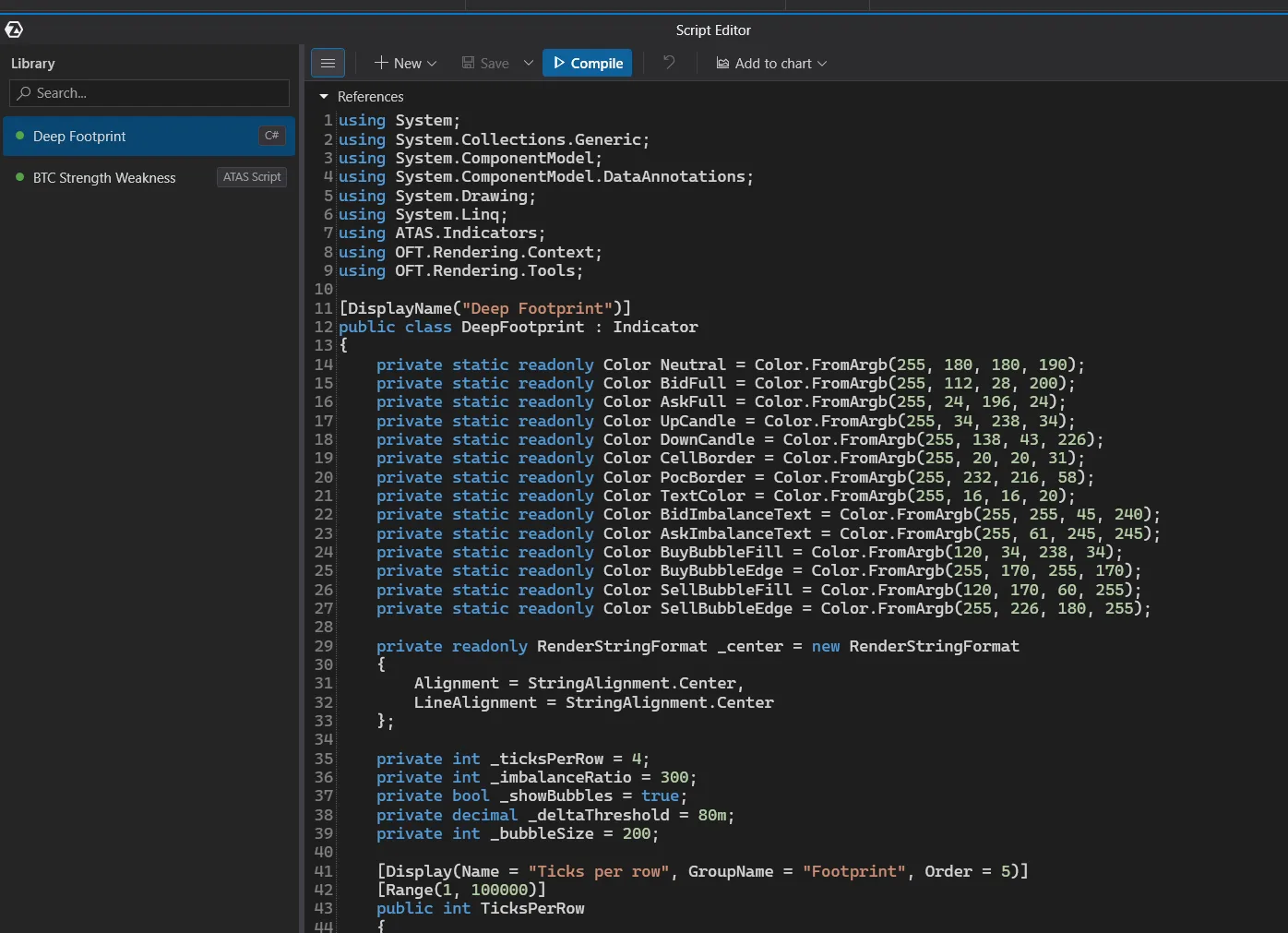
You have to be precise. "Implement the new heatmap" was read as the heatmap module, not as heatmap mode on the volume profile. One clear sentence with instrument, timeframe and numbers saves a round.
Safety checklist
- Leave trading operations off unless you test on a simulated account.
- Everything the agent reads goes to your AI provider, including accounts, positions and the journal. ATAS itself only counts which functions were called [2][6].
- Privacy mode hides account names and balances on screen only. The agent can still read them [6].
- Do not show the prompt or the token in a recording or screenshot. Regenerate the token if you did [5].
- Check what the agent did. ATAS says the AI can make mistakes in markups and analysis. The Log tab lists every request, and the last change can be undone there until the next restart [4][5].
Why this matters for your own indicators
Until now, an ATAS custom indicator needed C# and the ATAS API. With AI Connect, a description is enough for a first version, and the source code is yours to read. That does not replace a tested indicator that runs every day on live futures data, because the agent cannot check its own work on futures. It is a fast way to get from an idea to something you can look at.
If you want indicators that are built and tested for ATAS order flow trading, see our ATAS indicators. If you want your trades reviewed with notes, screenshots and playbooks, not only the numbers, PFT-EdgeBook has its own AI connector for Claude and ChatGPT.
Watch the full walkthrough
The whole first session is on YouTube, live and unscripted, 20 minutes with chapters.
FAQ
What is ATAS AI Connect?
AI Connect is an MCP server inside the ATAS desktop platform. It lets an AI agent on your computer read your workspace and journal, change charts and indicators, and write script indicators [1][2].
How do I connect Claude to ATAS?
Open "Connect AI agent" in ATAS, enable the MCP server, copy the prompt and paste it into Claude Code or Claude Desktop on the same computer. The agent adds the server and the Overview tab shows the connection [4].
Does AI Connect work with ChatGPT?
Not in the browser. ATAS requires a desktop agent on the same computer and names Codex, Claude Desktop, Claude Code, Cursor and VS Code with Copilot [1][3].
Can the AI trade for me in ATAS?
Only if you switch on trading operations in the Access tab. They are off by default, each order needs your confirmation, and one order is limited to a quantity of one by default [6].
Can the agent read the footprint chart on ES or NQ?
According to ATAS, no: quotes, bars, footprint, indicator values and chart screenshots are available for crypto exchanges only, while on futures the agent can set up charts, add indicators, draw levels and read the journal [6]. In our own test on a prop firm data connection it could not read futures data. A viewer reported that it works with a data connection through a broker such as AMP; we have not verified that.
Which ATAS plan do I need for AI Connect?
Ultra, including Lifetime Ultra. The 14-day Ultra trial is enough to test it [1].
Sources
This article is educational content, not financial advice.