

PFT Terminal vs. TradeZella, Edgewonk and TradesViz: A Comparison for ATAS Traders
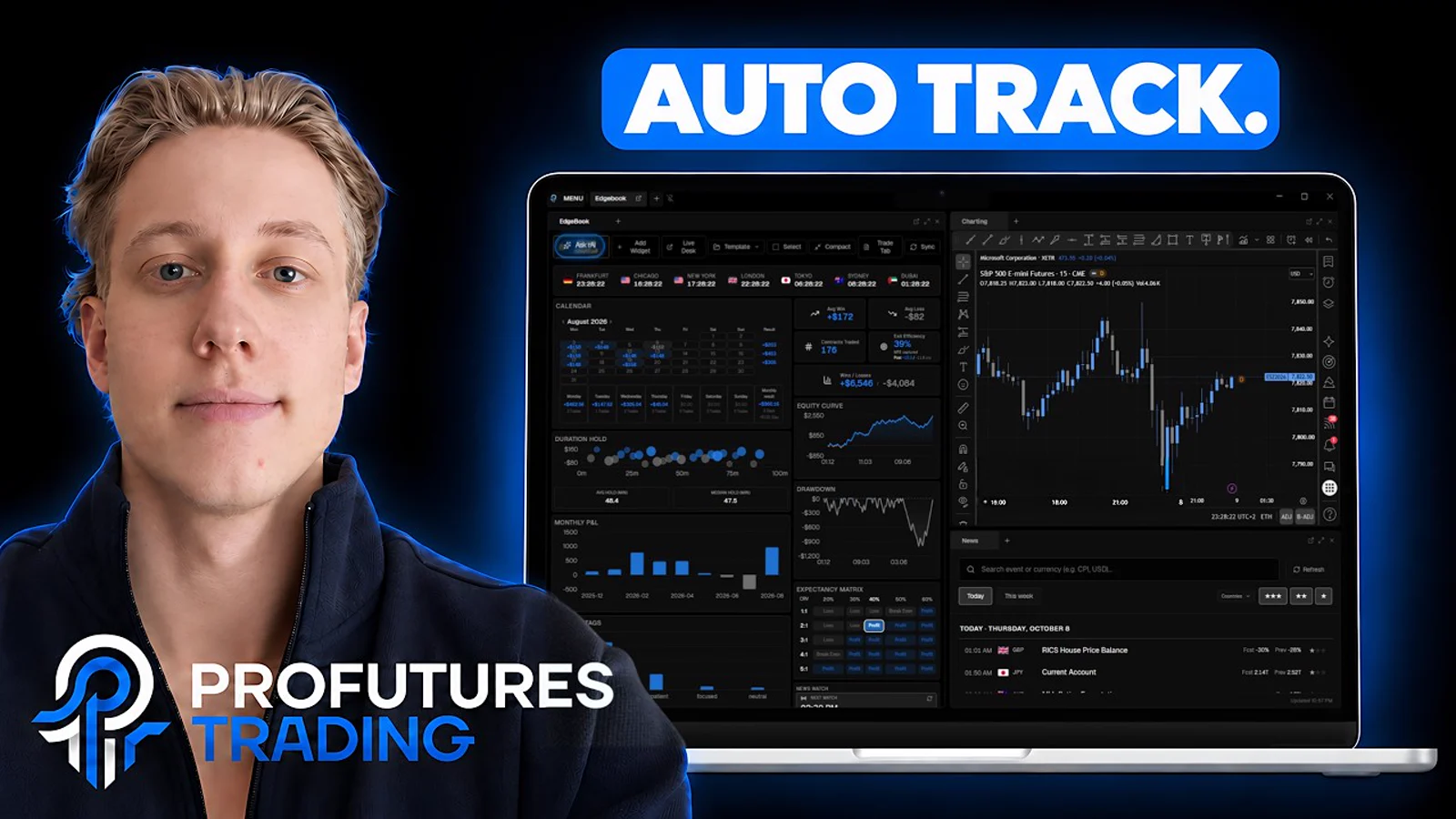
Full disclosure first: we make PFT Terminal. This article compares it with three journals many futures traders use, TradeZella, Edgewonk and TradesViz. Everything we say about the other three comes from their own websites and help pages, checked on 9 October 2026 and linked at the end. Everything we say about PFT Terminal comes from version 1.7.143. Prices and features change, so check the vendor's page before you decide. Where we write "not found on the pages we checked", that means exactly that: we could not find it, not that it does not exist.
The short version
If you trade with ATAS, NinjaTrader or Sierra Chart on Windows and want your journal to fill itself while you trade, that is what PFT Terminal is built for. If you want to open your journal in a browser or on your phone, TradeZella, Edgewonk and TradesViz are web-based, and PFT Terminal is a Windows desktop app. Both are valid choices. The table shows where each one stands.
Comparison table
| PFT Terminal | TradeZella | Edgewonk | TradesViz | |
|---|---|---|---|---|
| How ATAS trades get in | Live from the chart with the EdgeBook Bridge (ATAS Classic and ATAS X), plus direct import from the ATAS trade history | Upload of an .xlsx export from ATAS (per its ATAS help article) | ATAS listed as "Fast Import Supported"; the method is not described on that page | Upload of the ATAS statistics export or of the ATAS database file (per its ATAS page) |
| Other live connections | Bridges for NinjaTrader 8 and Sierra Chart, set up by you with the files and guide in your account | Auto-sync for NinjaTrader and Tradovate, among others (per its broker list) | Not found on the pages we checked (its help center could not be opened) | Auto-sync for a number of brokers (per its website) |
| Screenshots | Automatic at entry and exit once you pick monitors or windows; hotkey with a small popup (switch on in settings) | Attachments per trade | Up to 6 per trade (per its pricing page) | Images per trade, number depends on plan (per its pricing page) |
| Voice notes | Offline dictation with a global hotkey, after you switch on voice notes (one-time model download, about 420 MB) | Speech-to-text in the notebook (per its help article) | Not found on the pages we checked | Not found on the pages we checked |
| Connect ChatGPT or Claude (MCP) | Read-only MCP connector, paid add-on | Help center section "Zella AI and MCP" | Not found on the pages we checked | MCP and REST API, Pro or Platinum plan required (per its API page) |
| Runs as | Windows desktop app, journal stored on your computer, sign-in required | Web app; a mobile version is announced in its release notes | Web-based | Web app plus iOS and Android apps |
| List price as shown by the vendor | Free download with a PFT account; cloud sync and the MCP connector are paid add-ons | Essential 35 USD per month, or 26 USD per month billed yearly | 197 USD per 12 months | Free plan; Pro 17.99 EUR per month, or 13.49 EUR per month billed yearly |
Vendor information checked on 9 October 2026, taken from each vendor's own pages. Prices as displayed there, in the vendor's currency and billing period; they may have changed.
Fast: your journal fills itself while you trade
How a trade gets into the journal is where PFT Terminal works differently. With TradeZella and TradesViz, an ATAS trade arrives when you export a file from ATAS and upload it, as their ATAS help pages describe. With PFT Terminal, the EdgeBook Bridge runs inside ATAS, and the terminal checks for new bridge events every 1.5 seconds: the fills, partial fills, your stop and target as you place and move them, and the close.
Your thoughts can go in right away too. Once voice notes are switched on, press Ctrl+Shift+T while you are still in ATAS, speak, and choose where the text goes, for example the notes of the trade. Dictation runs offline on your computer, and you can add your own trading terms such as VWAP or POC so they are recognized. With the screenshot hotkey switched on, a small popup appears in the corner without taking focus from your chart, and the image goes into the trade.
The data a file export cannot carry
Because the bridge watches the trade while it is open, it records things a history export does not contain:
- MFE and MAE: how far the trade went for you and against you before you closed it
- MFE and MAE after the exit, so you can see what happened once you were out
- the open P&L minute by minute and the candles of the trade
- every stop and target change
PFT Terminal turns this into Exit Efficiency, an R-Multiple based on your first stop, and the usual numbers: win rate, profit factor, expectancy, payoff and drawdown. All of them come from one calculation, so the dashboard, the Trade Tab, the calendar and the share card show the same values. The limit: trades imported from a CSV file or a trade history have no MFE, MAE or R-Multiple, because the file does not contain the price path.
Screenshots at entry and exit
With the bridge connected and your monitors or windows chosen in the settings, PFT Terminal takes a screenshot at entry and at exit by itself. With several monitors you get one image per screen on the same trade. Screenshots stay on your computer unless you switch on screenshot sync.
Set it up your way
PFT Terminal has 17 settings areas and 55 widgets you can place freely on your dashboard and save as templates. You build your own tag categories, setups with entry criteria, rules per strategy and your own note sections. Commissions can be set globally, per account and per instrument, and you decide the dollar range in which a trade counts as breakeven.
Getting started
A guided demo tour starts on the first launch and walks you through the real terminal in 9 stops, from the settings and connecting ATAS to the Trade Tab. Every topic is also covered in our full walkthrough on YouTube, with chapters:
Talk to your journal with ChatGPT or Claude
PFT Terminal offers an MCP connector as a paid add-on. It lets ChatGPT or Claude read your trades, statistics, notes and playbook and answer questions such as "which setup loses most on Mondays". It is read-only: the AI cannot change or delete anything. It is listed in the ChatGPT app directory as "PFT Edgebook - Trading Journal". TradesViz also offers MCP access on its Pro and Platinum plans, and TradeZella has a help center section called "Zella AI and MCP". How the connector works in detail is in our article on the MCP trading journal.
Where the others are ahead
- Browser and phone: TradeZella, Edgewonk and TradesViz run in the browser, TradesViz also has iOS and Android apps. PFT Terminal is a Windows desktop app.
- Trade replay: TradeZella offers replay on its Pro and Ultra plans.
- Broker sync: TradeZella and TradesViz connect to many brokers directly. PFT Terminal works through bridges for ATAS, NinjaTrader and Sierra Chart and through file import.
- Imported trades: for trades that come from a file instead of a bridge, PFT Terminal has no MFE and MAE.
Which one fits you
Choose PFT Terminal if you trade futures with ATAS, NinjaTrader or Sierra Chart on Windows and want trades, MFE/MAE, screenshots and voice notes captured while you trade. Choose a web journal if you want to review in the browser or on your phone, or need direct broker sync.