

ATAS X Templates and Workspaces: Save, Load, Export
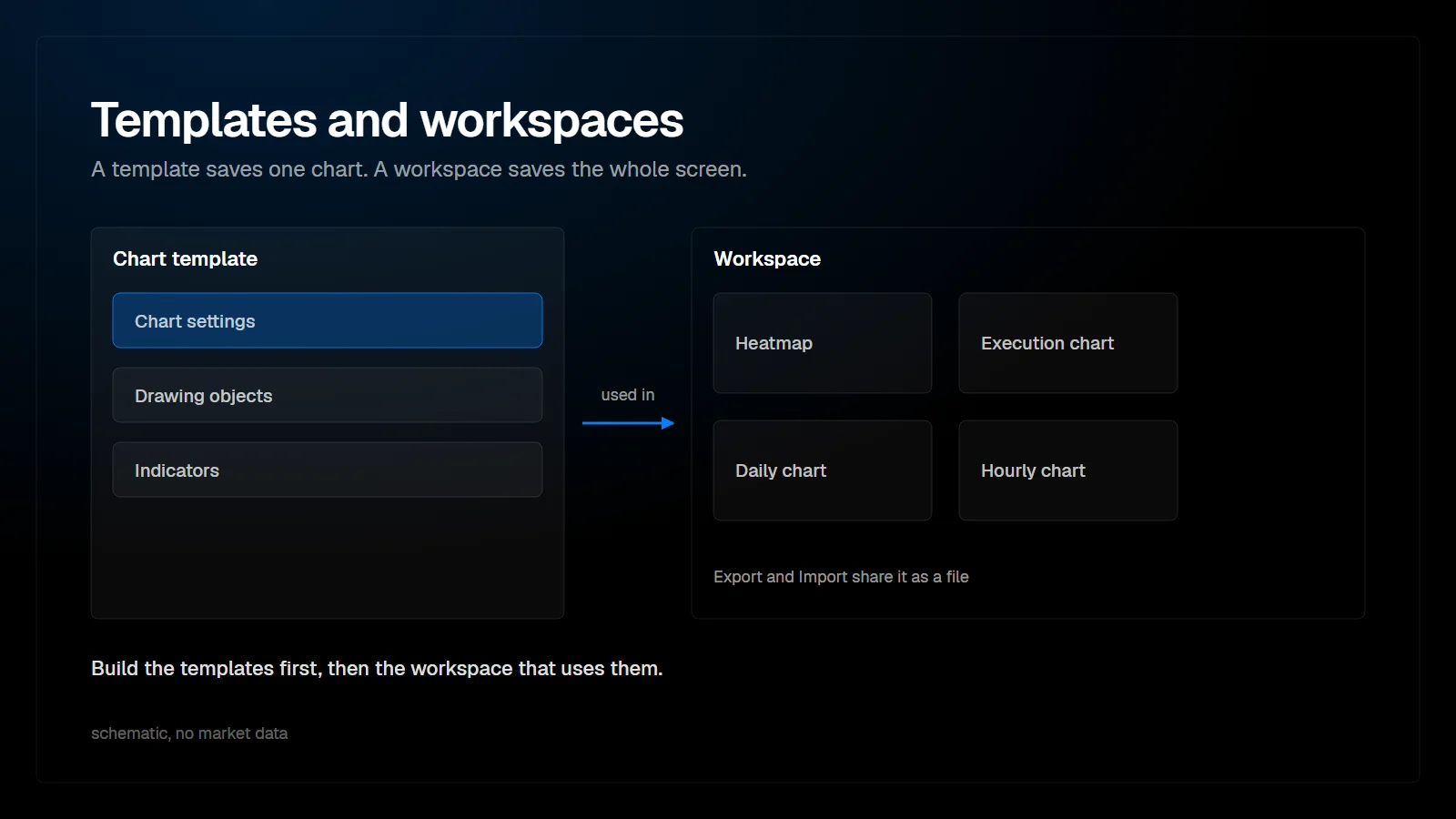
In ATAS X, a template stores the settings of one chart and a workspace stores the whole screen. Templates are saved, applied, set as default and exported from the Templates window on the chart toolbar. Workspaces are loaded, saved, exported and imported from the Workspaces window. Build the templates first, then the workspace that uses them.
What is the difference between a template and a workspace?
A template covers one chart. A workspace covers many windows.
ATAS describes templates as saved chart settings. It describes a workspace as a structure "that includes a set of work layers and the windows within them that you use regularly". The two work at different levels, so one template can be used in many workspaces.
| Template | Workspace | |
|---|---|---|
| Covers | The settings of one chart | Work layers and the windows on them |
| Opened from | The button on the chart toolbar | Workspaces in the main window |
| Main actions | Save, apply, edit, set as default, export | Load, add, save, delete, rename, copy, edit, export, import |
| Shared by | Export | Export and import, or the .ws file |
Templates and workspaces in ATAS, as described in the ATAS help center.
How do you save and load an ATAS X template?
Open the Templates window from the chart toolbar.
The Templates window offers five actions according to the ATAS help center: save the current chart configuration, select a template to apply it to the current chart, edit an existing template, set a template as default so that it is applied automatically when new charts open, and export a template for backup or sharing.
In our ATAS X walkthrough the template dialog adds a few habits that keep a growing collection usable:
- Create a directory first, for example one for execution charts, then name the template.
- Choose exactly what the template stores, such as chart settings and drawing objects, without the time frame, so one coloring template works across several time frames.
- Mark templates you reuse often as favorites for one-click loading.
- Put the instrument, time frame and date into the name, so outdated templates are easy to spot.
How do you save and load a workspace in ATAS X?
In ATAS X: menu, workspace, workspace management.
Workspace management adds the current arrangement as a new workspace under a name you choose. Loading another workspace switches the whole screen. The Workspaces window in the ATAS help center lists these actions:
| Action | What it does |
|---|---|
| Load | Opens the selected workspace |
| Add / Save | Creates a workspace, or saves the current one under the name you enter |
| Rename / Copy | Renames the selected workspace, or duplicates it |
| Edit | Opens a workspace for modification without opening it or loading its charts |
| Export / Import | Saves workspace settings to a file on your PC or other storage, or loads them from such a file |
| Delete | Removes the workspace together with all its work layers and windows |
Actions in the ATAS Workspaces window.
Two further options: with saved workspaces, you can choose one to load when the platform starts, and "Save and close" stores the current workspace when you exit. ATAS X also remembers the last opened workspace and preselects it at the next login, and its login window includes a Workspace Editor (ATAS changelog, beta 8.0.15, 4 September 2026).
How do you export and import a workspace?
Through the Workspaces window, or through the .ws file.
- Export: select the workspace in the Workspaces window and click Export to save it as a file.
- Import in the platform: open Workspaces in the main window, click Import and select the file. The workspace is available when you launch the platform.
- Import through the folder: close the platform, copy the .ws file into the Workspaces_v3 folder under AppData\Roaming\ATAS and start the platform again.
The ATAS help article on importing a workspace does not state whether the folder path differs between ATAS Classic and ATAS X. If the folder method does not show your file, use Import in the Workspaces window instead.
What changes between ATAS Classic and ATAS X?
You can bring a Classic setup over, but expect to check it.
ATAS states on its ATAS X page that you can transfer a workspace from the classic version to the new one. As an alternative, save the settings of each chart in your workspace as a separate template and import those templates into ATAS X. The same page says ATAS X is "not a full replica of the classic version", so some windows may need to be rebuilt by hand. The detailed transfer steps are not documented there.
How do you back up templates and workspaces?
Copy the ATAS data folders before you reinstall.
According to the ATAS help center, user data is kept in the AppData\Roaming\ATAS folder and in Documents\ATAS by default, not in Program Files. Workspaces are stored in Workspaces_v3; chart templates, SmartDOM templates, snapshots and logs sit in related folders under the same path. Close the platform before copying files.
FAQ
Are ATAS templates part of the workspace?
No. A template stores the settings of one chart and is available independently of any workspace. A workspace stores windows and layers.
How do I make new charts start with my settings?
Save the chart as a template and set it as default. ATAS then applies it automatically when new charts are opened.
What happens if I delete a workspace?
ATAS warns that all work layers and windows saved in it are deleted too. Export it first if you may want it back.
Can I move my ATAS Classic workspace to ATAS X?
ATAS says yes. Transfer the workspace, or save each chart as a template and import the templates into ATAS X, then check the result window by window.
This article is educational content, not financial advice.